
How to use the Resource Conflict module when creating a Course Schedule
Use case: I wanted to create a Course Schedule, where the user (faculty member) can select a number of Courses from a schedule.
If any of the selected courses are scheduled with conflicting dates, then an error message will be displayed to the user, indicating which of the Courses contain conflicts.
- Install the Resource Conflict module, the Flag module, and the View Bulk Operations module (which allowed me to select multiple Courses).
- Create a Course content type - one of the fields must be a Date field (requires an End Date)...(I called this field "Course Day") - and check "Enable resource conflict checking for this content type", using "Course Day" for the conflict check.
- Create a Flag (I called mine "Selected Courses"), make it non-Global, and select the "Course" bundle (you can keep everything as default).
- Under Rules, go to the Component tab and Add a New Component (I called mine "Select course") and select "Rule set".

Add a new Rule Set (I called mine "Select a course")
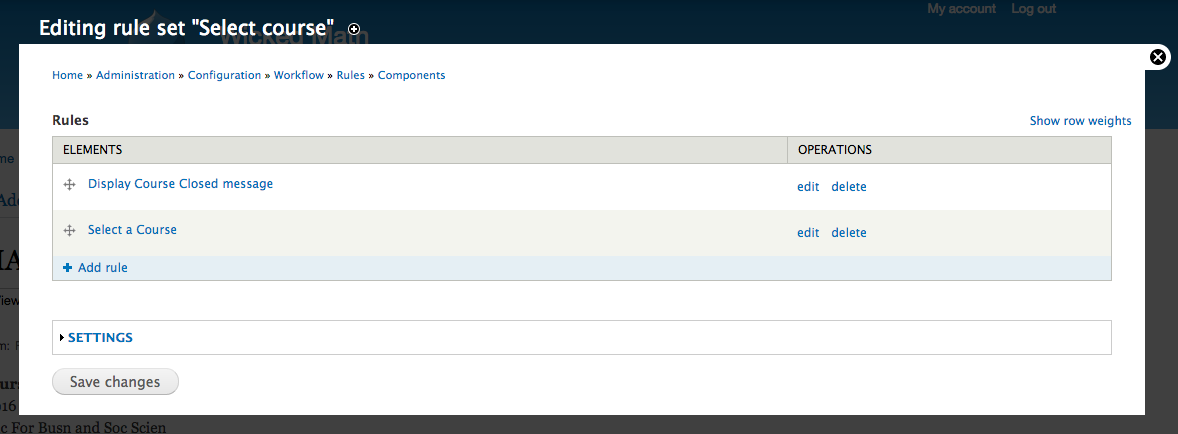
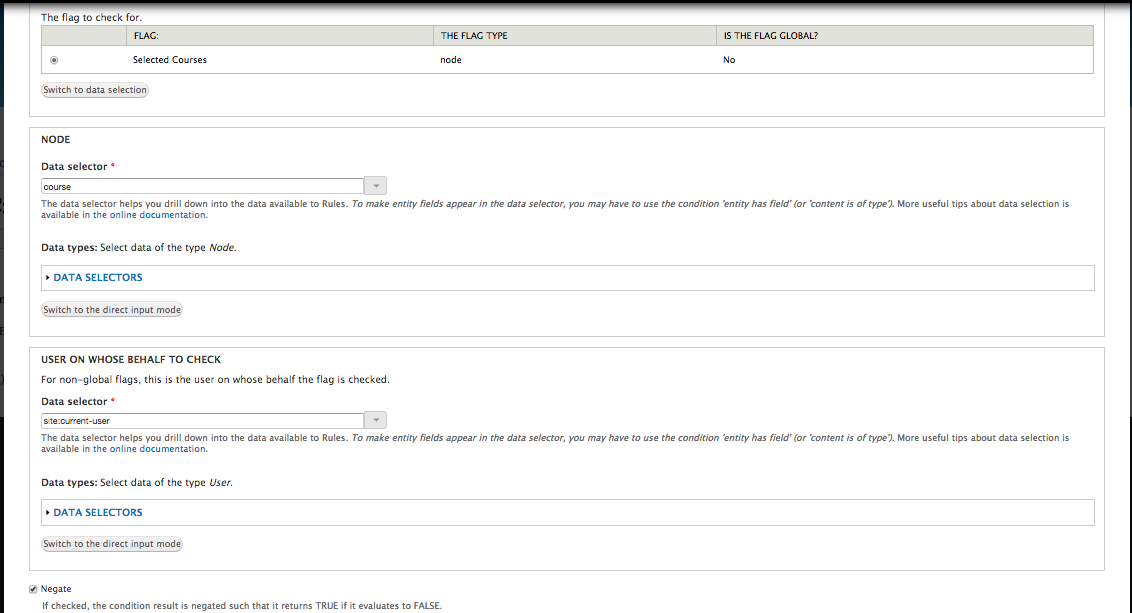
Add a Condition and Action:
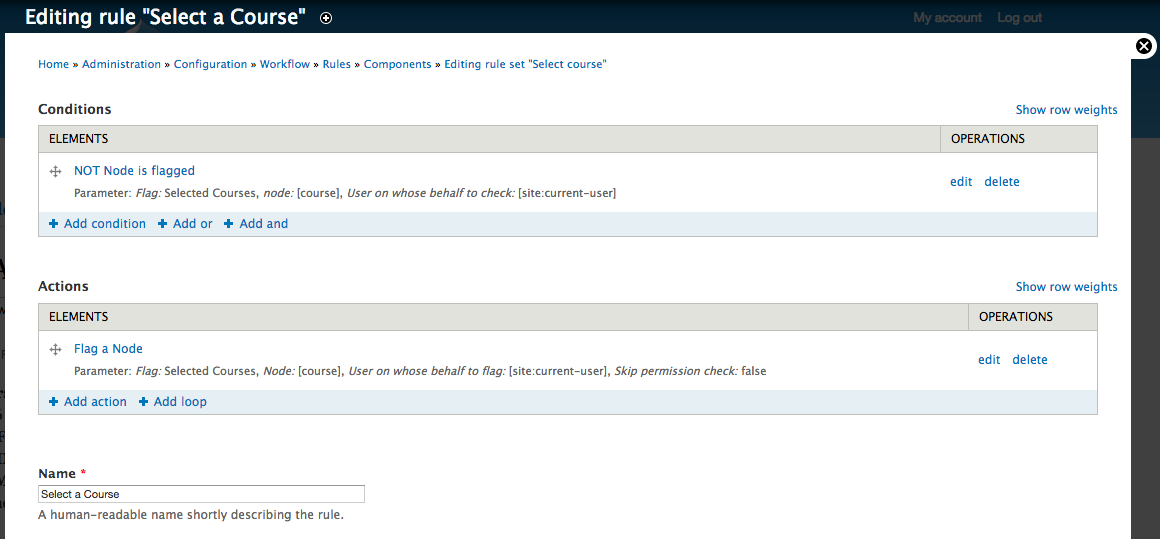
Edit the Condition:
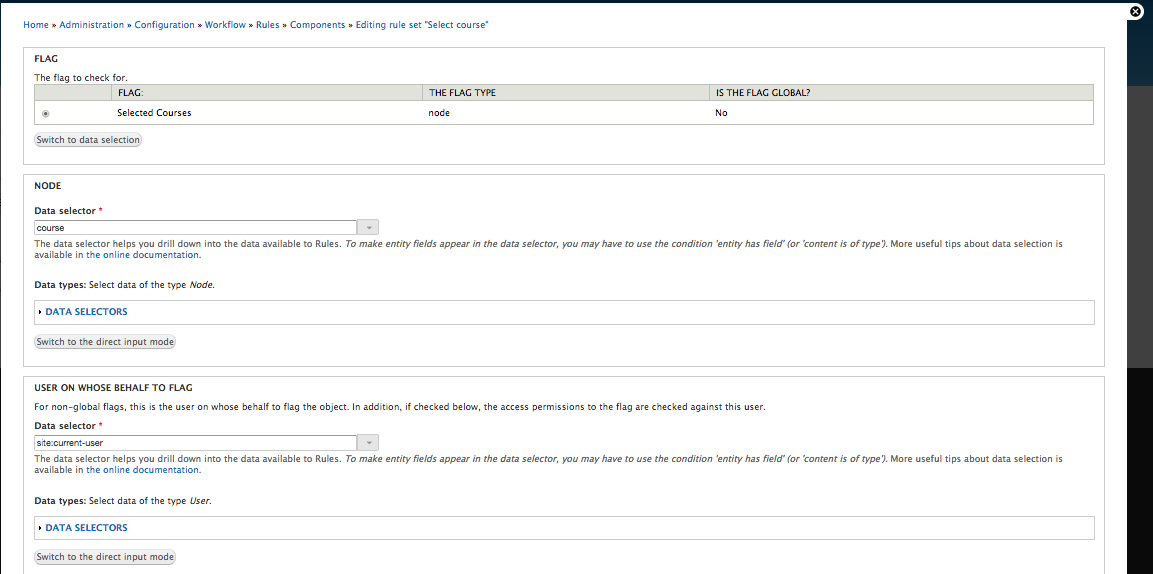
Edit the Action::
Go back to the main Rules tab, and Add a New Rule (I called mine "Display conflict message on course selection") and select "A node has been flagged, under (whatever you called your flag)":

Go to the Components tab, and Add a New Component and select Rule (I called mine "Display conflict message") with the following configurations:
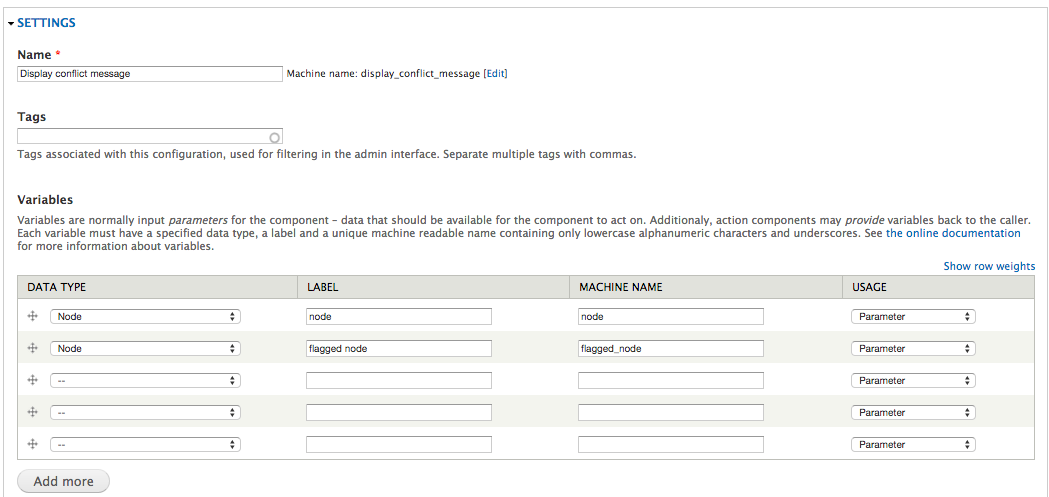
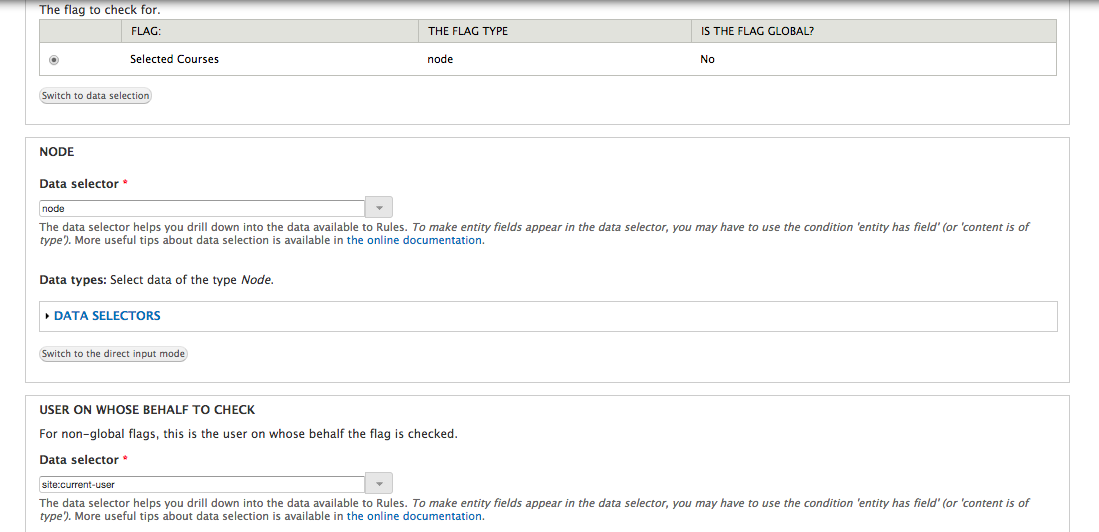
Add the Component Condition:
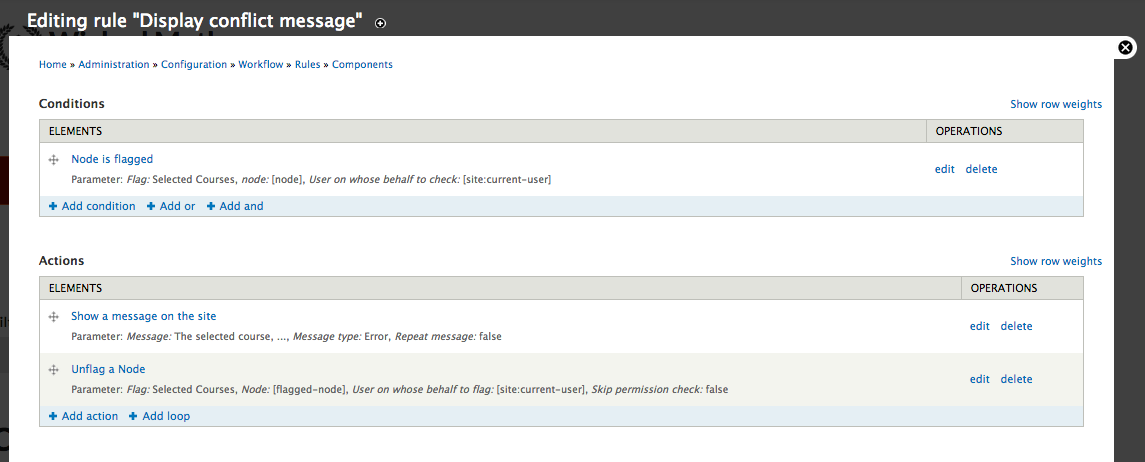
Add the Action "Show Message":

Add the "Unflag a Node" Action:
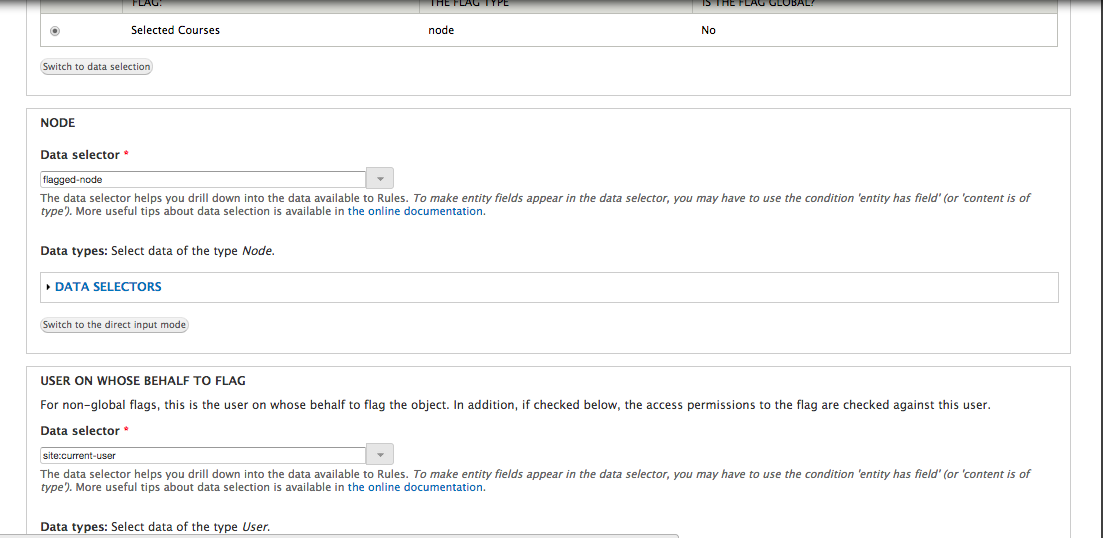
Go back to the Rules tab, and add the rule (component) that you just created:
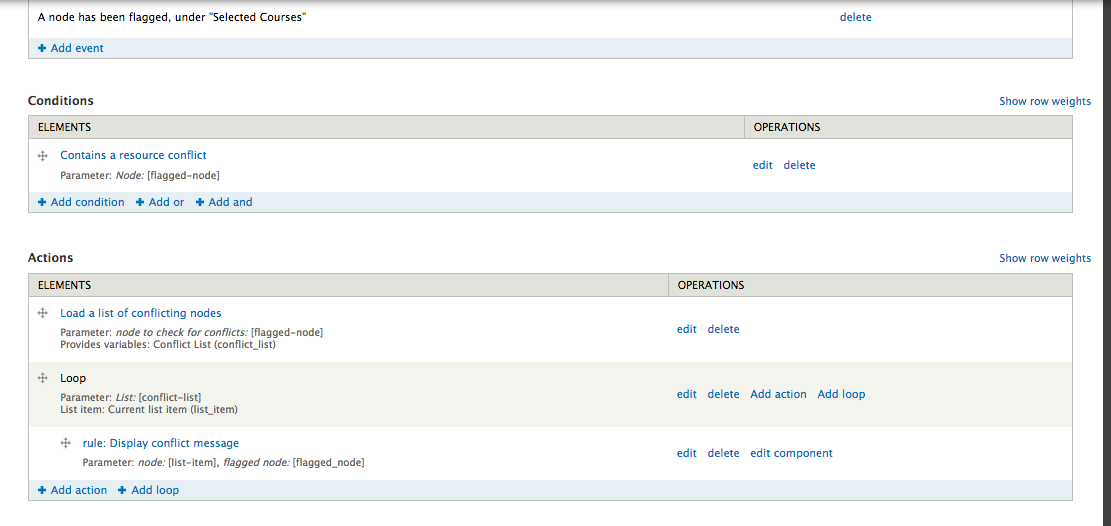
- Create some nodes of Course content type that have conflicting dates.
- Create a new View (I called mine "Course Table") and add whatever fields you want. Add a new field, "Bulk operations: Content", and move it to the top of the list of fields.
- Edit this new field - under Select Bulk Operations, check the component that you just created ("Select course").
Help improve this page
You can:
- Log in, click Edit, and edit this page
- Log in, click Discuss, update the Page status value, and suggest an improvement
- Log in and create a Documentation issue with your suggestion
