
On this page
- Digital Sandbox
- Check out the Installation steps:
- How do I sync/provision users from Drupal to miniOrange SCIM application using User Provisioning module?
- Steps to configure Drupal as SCIM Client:
- Steps to configure miniOrange as SCIM Server:
- Attribute Mapping:
- Manual / On-Demand Provisioning:
- How to configure Manual/On-Demand Provisioning?
- Let’s see how Manual/On-Demand Provisioning works.
- Automatic Provisioning:
- How to Configure Automatic Provisioning?
- Let’s see how Automatic Provisioning works:
- Contact our 24*7 support team
miniOrange as SCIM Server
This document will assist to configuring miniOrange as a SCIM Server and Drupal as a SCIM Client. The Drupal User-Provisioning module will allow you to sync users from Drupal to the miniOrange application.
The Drupal User Provisioning and Sync module is compatible with Drupal 8, Drupal 9, Drupal 10 as well as Drupal 11.
Check out the Installation steps:
How do I sync/provision users from Drupal to miniOrange SCIM application using User Provisioning module?
Steps to configure Drupal as SCIM Client:
- Once the module is installed, navigate to the Configuration tab of the Drupal site and select miniOrange User Provisioning.
-
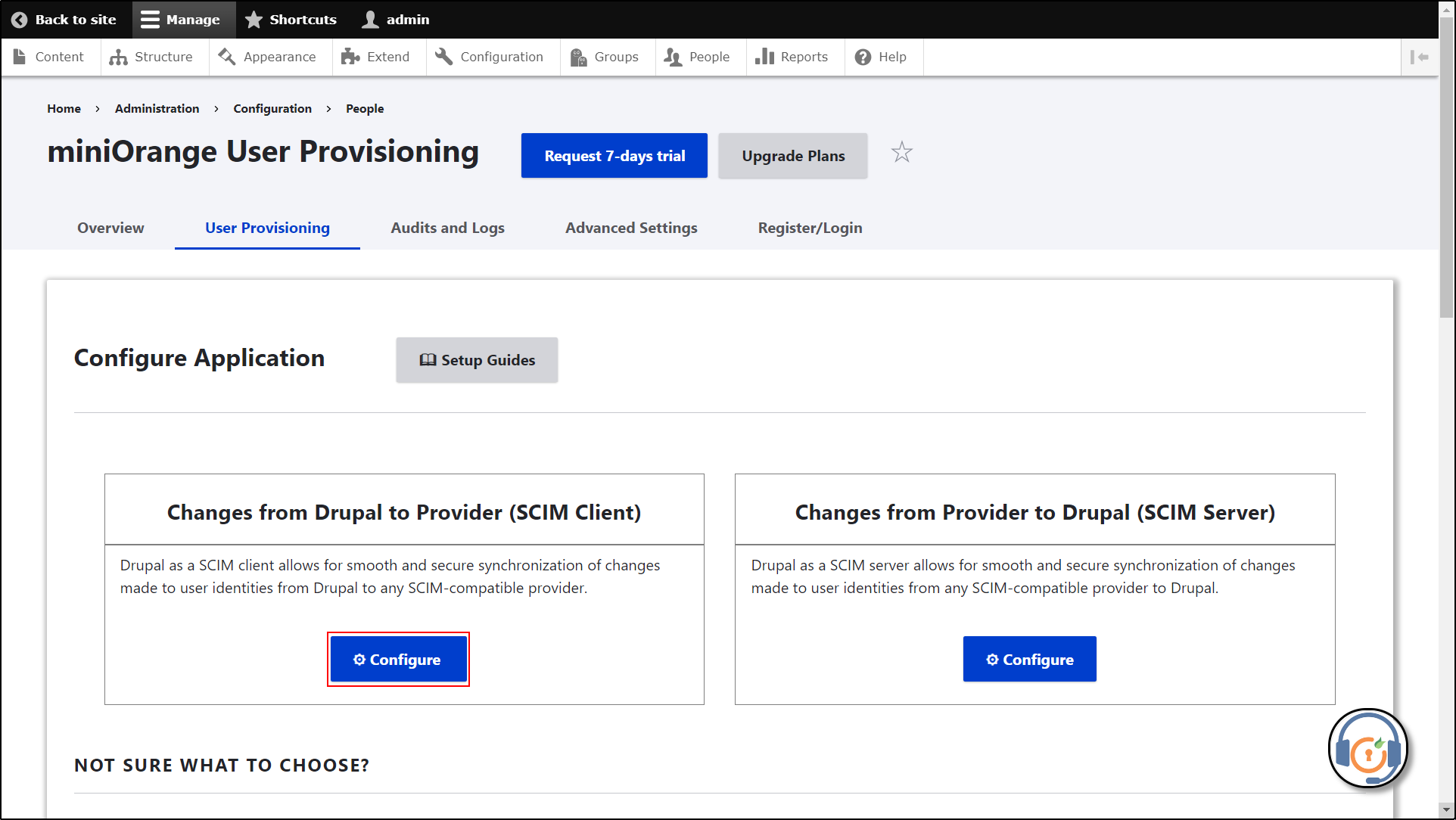
Navigate to the User Provisioning tab of the module and click on the Configure button under the Changes from Drupal to Provider (SCIM Client) section.
-
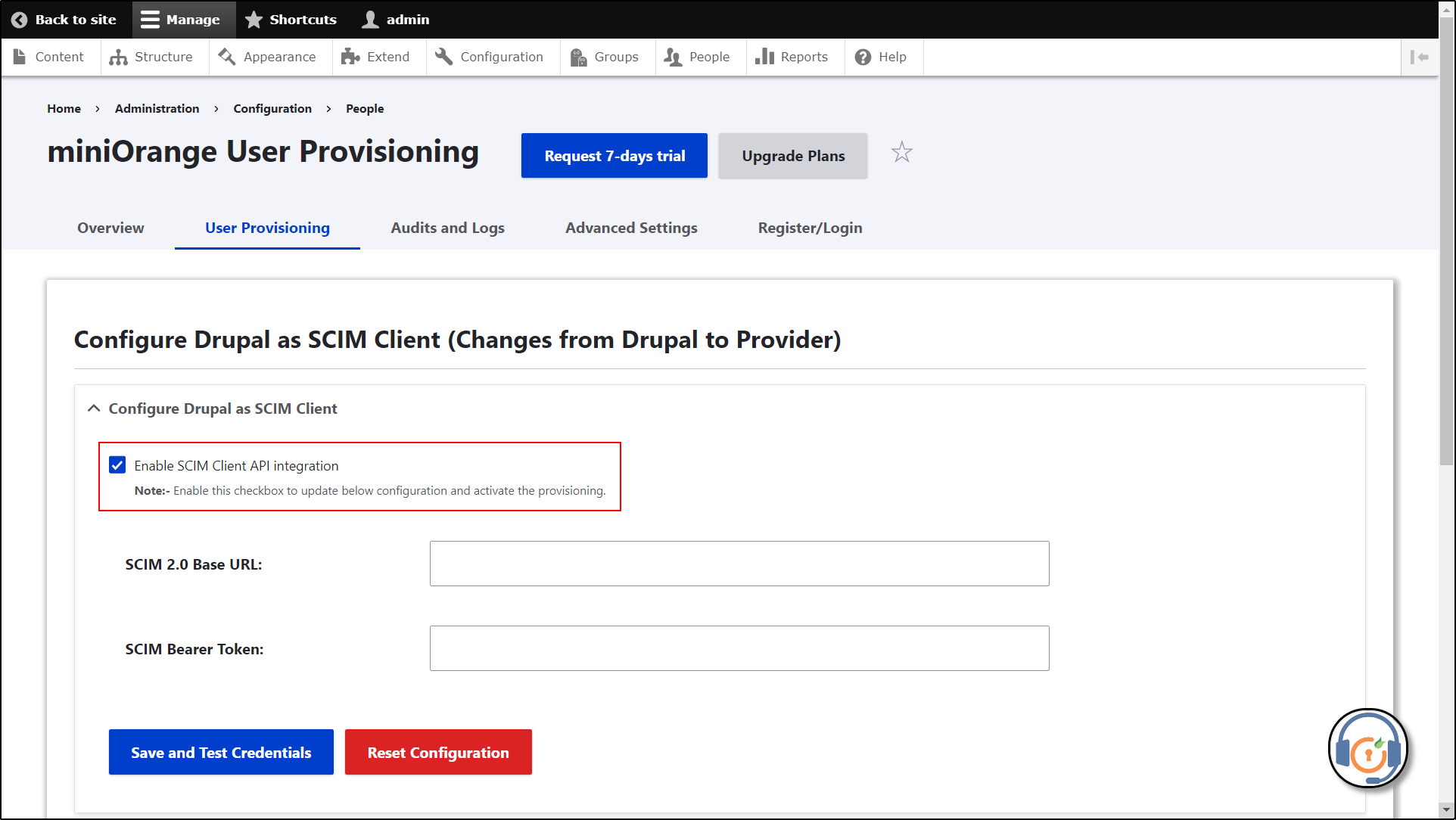
Enable the Enable SCIM Client API Integration checkbox.
Steps to configure miniOrange as SCIM Server:
- Login into your miniOrange Admin console.
-
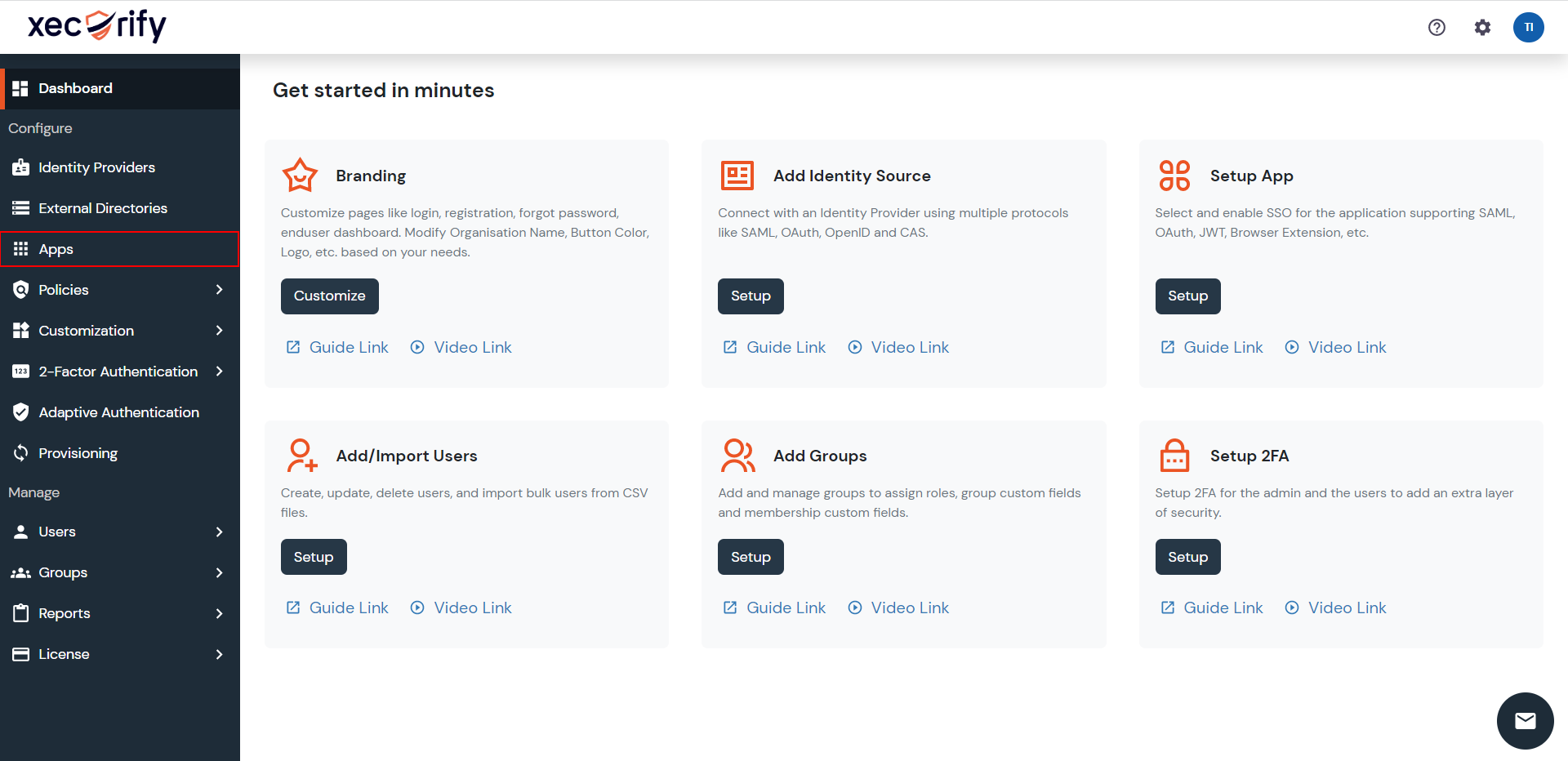
Navigate to the Apps section in the left navigation panel.
-
Click on + Add Application button.

-
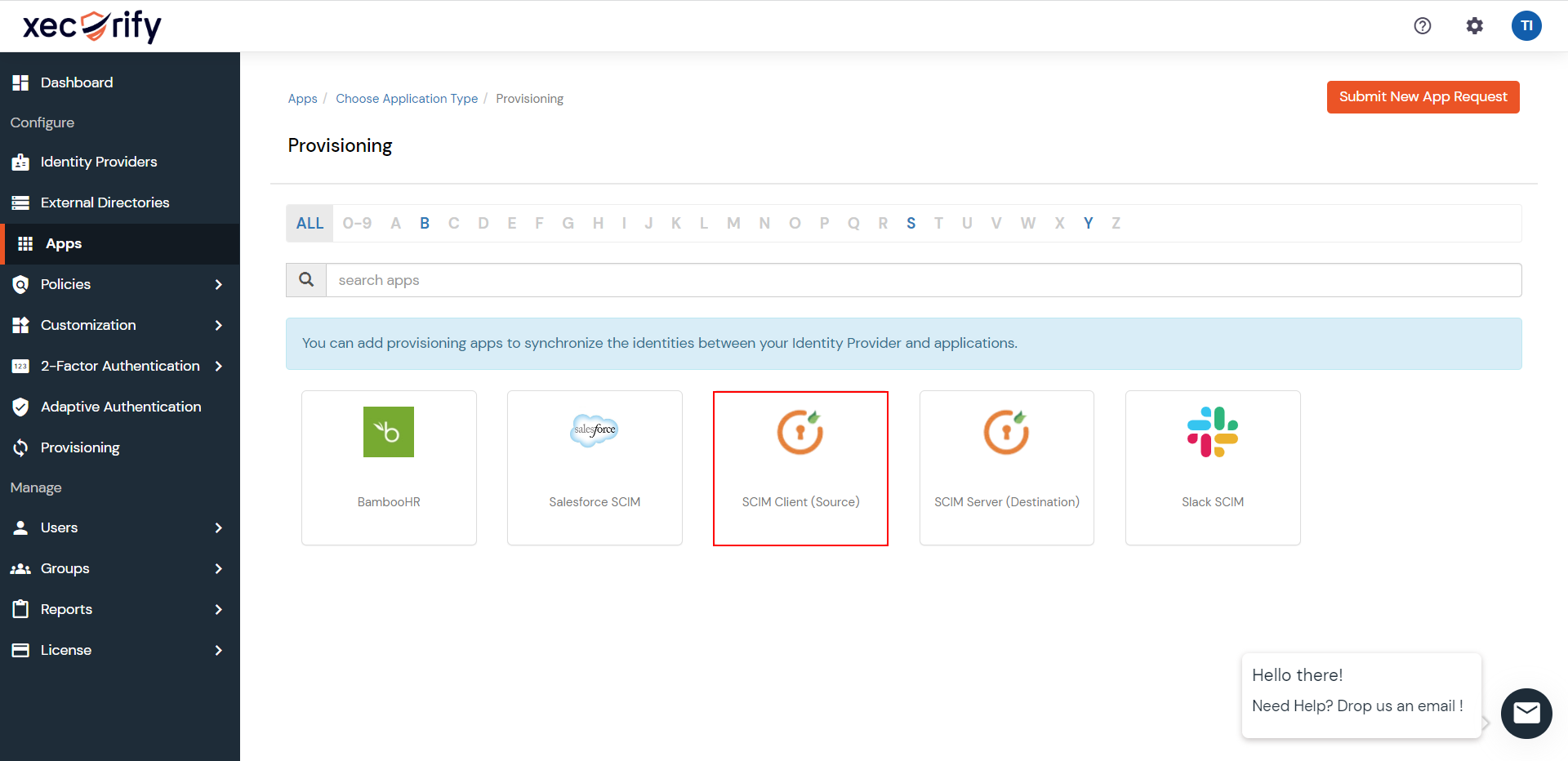
Then select PROVISIONING.

-
Now, select SCIM Client (Source).
- Enter the Custom Application Name.
-
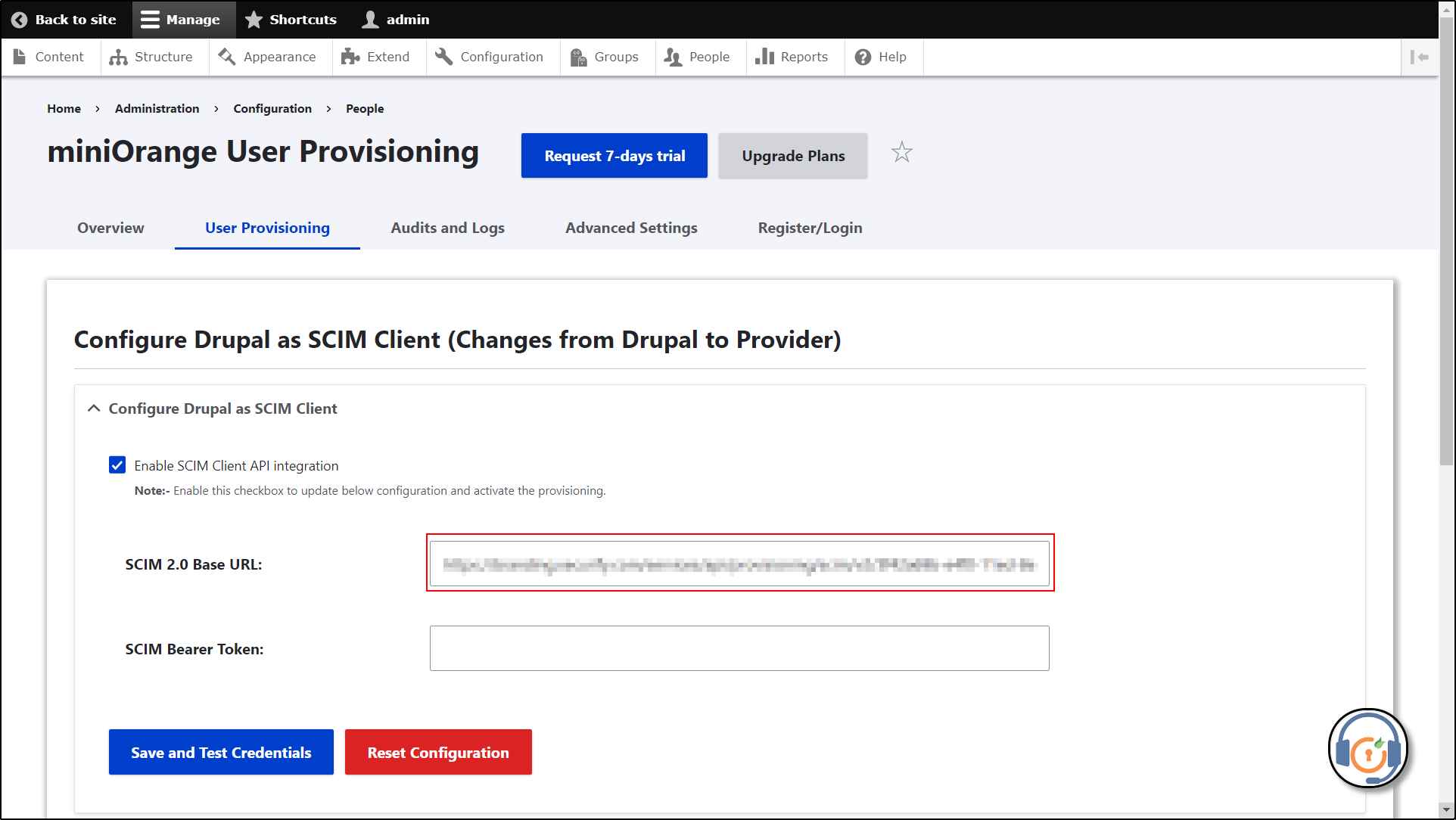
Copy the SCIM Base URL.

-
Paste the copied SCIM Base URL into the SCIM 2.0 Base URL text field.
-
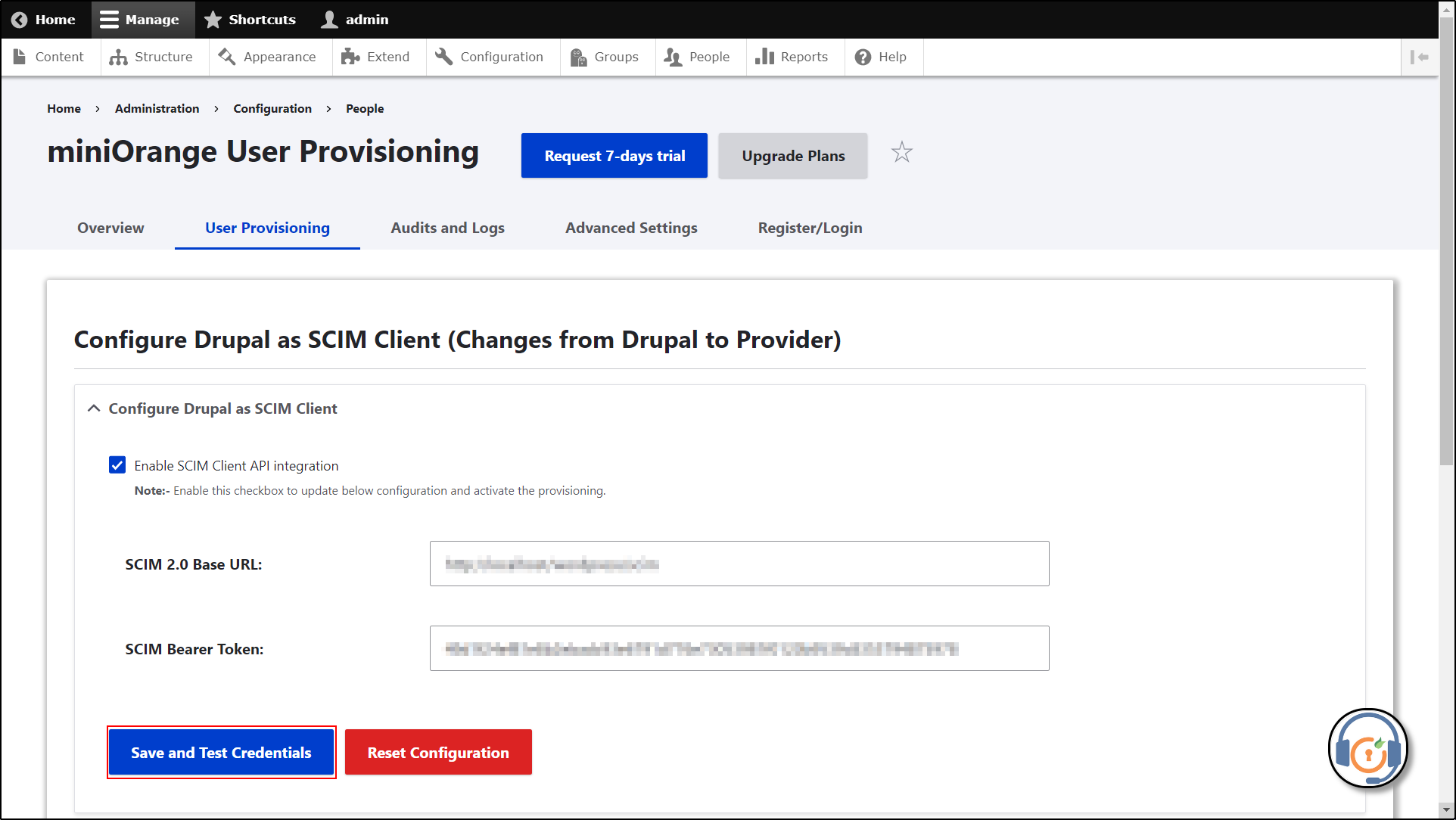
Navigate back to the miniOrange dashboard and copy the Bearer Token.

-
Navigate to the Drupal site and paste the copied Bearer Token under the SCIM Bearer Token text field.

-
Click on the Save and Test Credentials button.
-
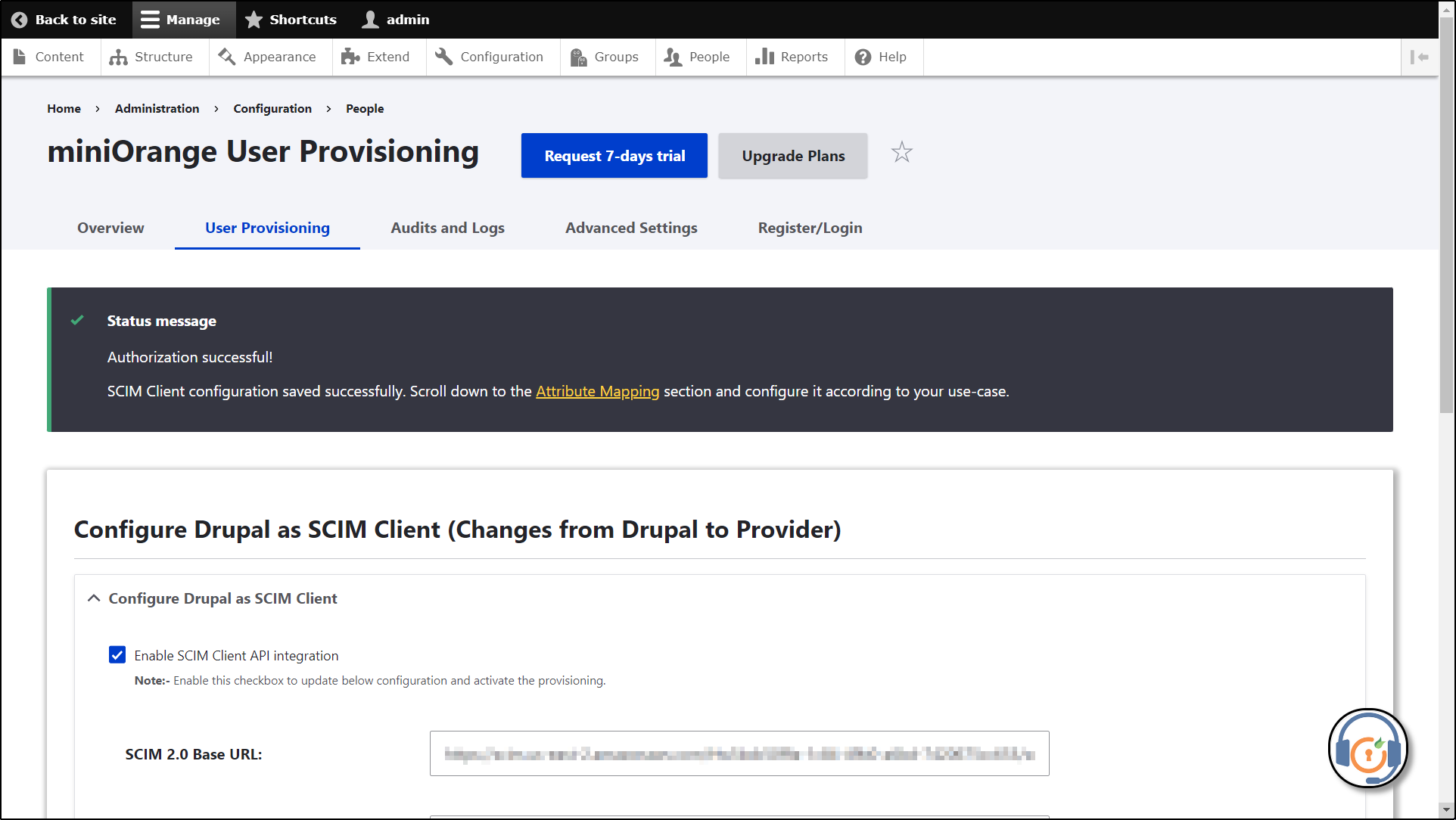
Once the test is successful, you will be given a success message.
If you face any issues during the configuration, please contact us at drupalsupport@xecurify.com. Please send the screenshot of the error window, and we will assist you in resolving the issue and guiding you through the setup.
Attribute Mapping:
-
Once you are done with the configuration scroll down to the Attribute mapping section.

-
From the Drupal User Attribute dropdown select the user attribute you want to map with the SCIM Provider Attribute.

-
Now, click on the Next Step button.

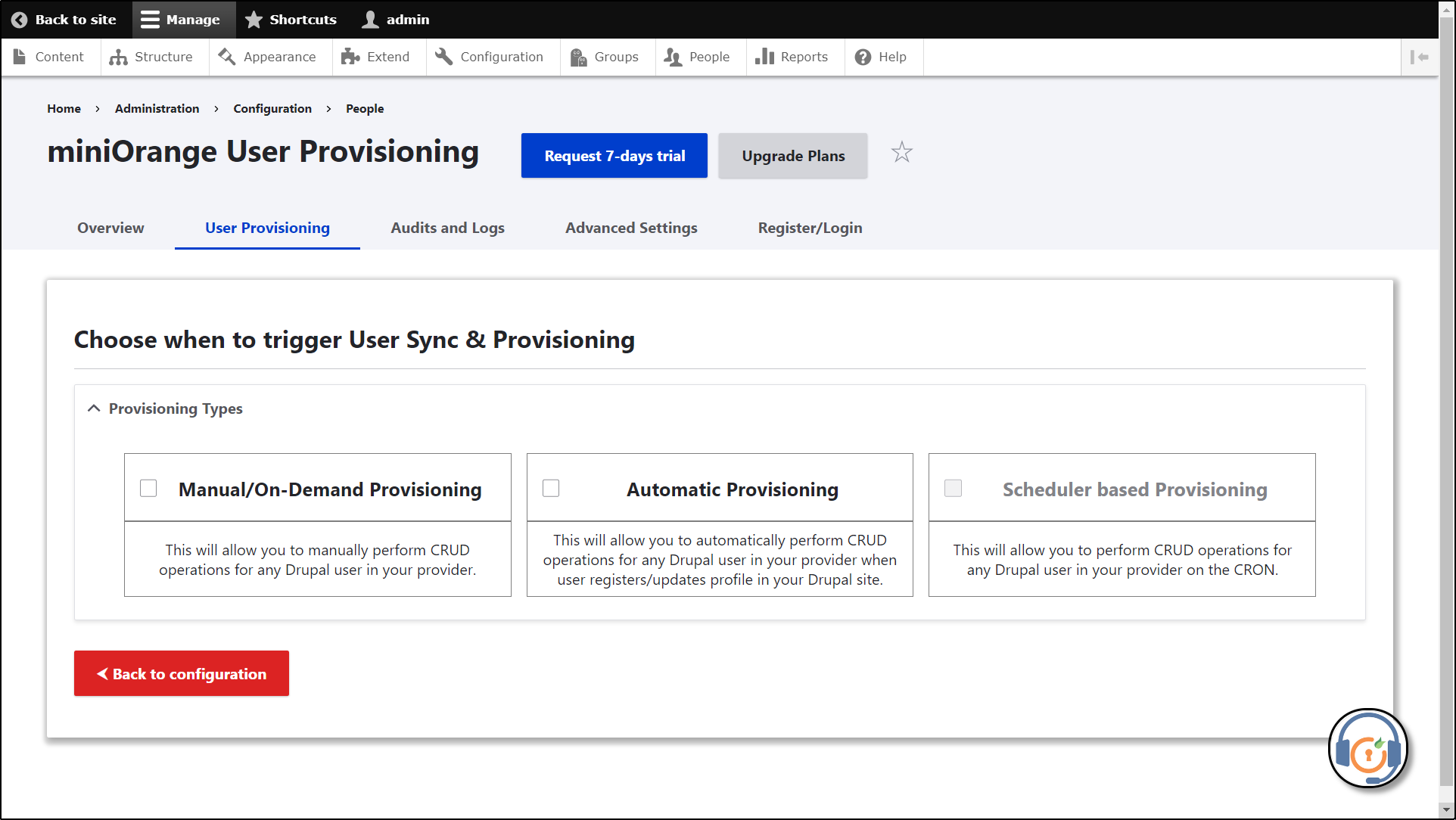
The module supports 3 types of provisioning: Manual/On-Demand Provisioning, Automatic Provisioning, and Scheduler-based Provisioning.
You can choose amongst the type of provisioning as per your requirement.
Manual / On-Demand Provisioning:
In Manual/On-Demand Provisioning, the user is manually provisioned from the Drupal site to the miniOrange application.
How to configure Manual/On-Demand Provisioning?
-
Enable the Manual/On-Demand Provisioning checkbox.

-
Now, select the operation(s): Create, Update, Deactivate, and Delete that you want to allow during the provisioning. Once the operations are selected, click on the All Done button.

Let’s see how Manual/On-Demand Provisioning works.
-
Click on the Perform Manual Sync button.

-
Search for the user you want to provision to the miniOrange application, select the user, and click on the Submit button.
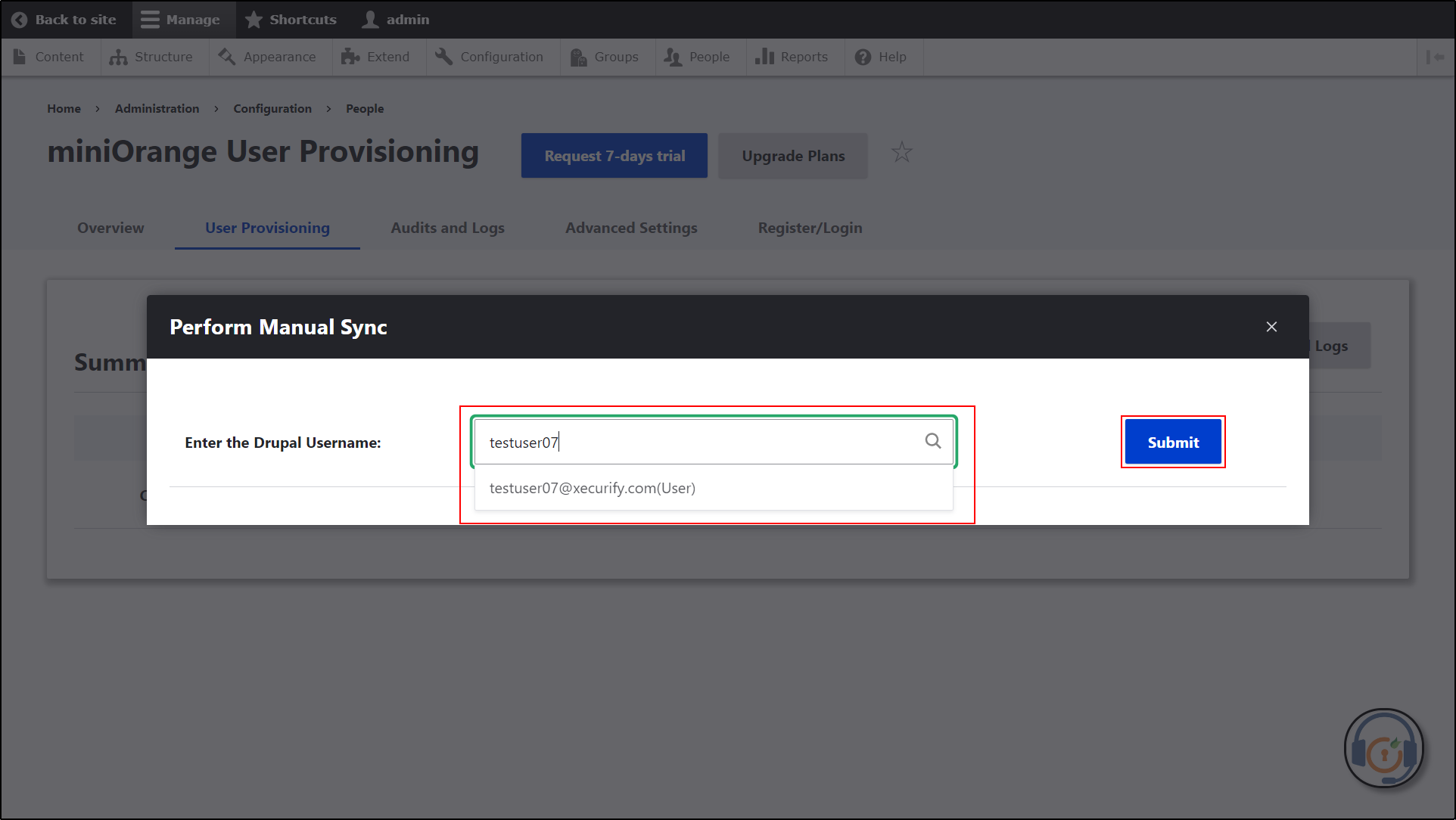
-
Once the user is successfully provisioned to the application, you will get a success message.
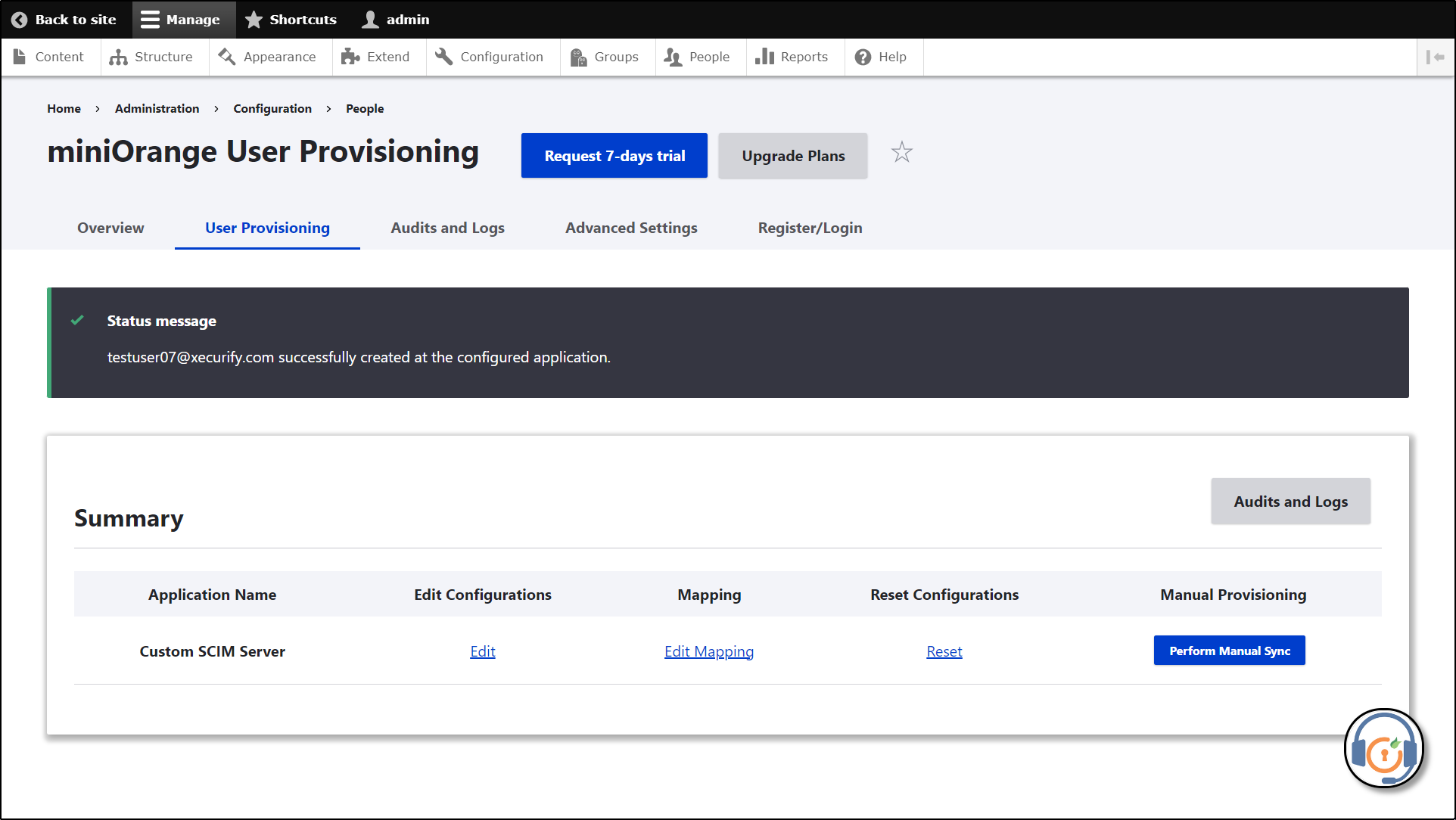
-
Navigate to the Users tab on the miniOrange dashboard and search for the user to check the status of the user provisioned.
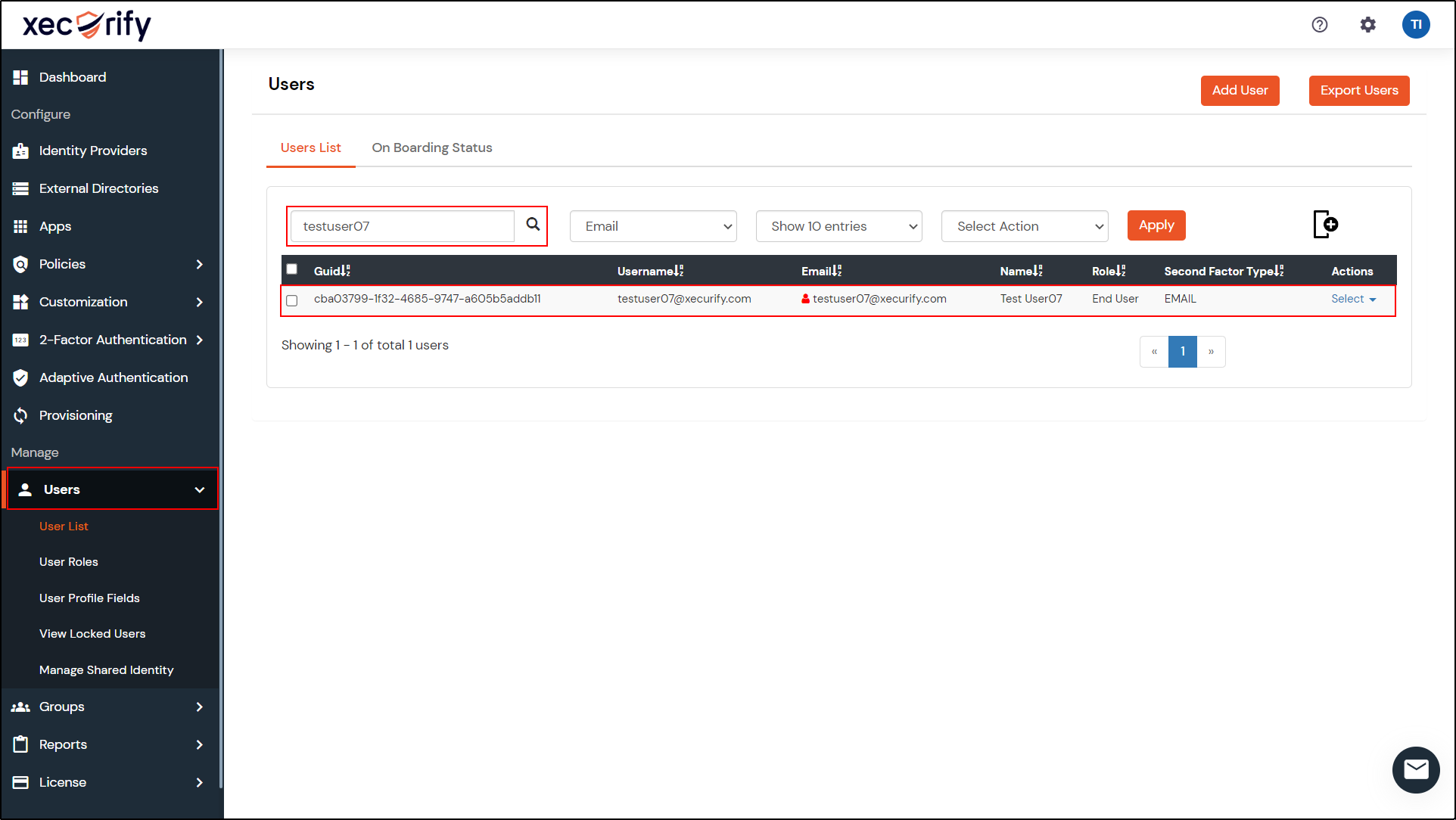
You can see the user has been successfully provisioned to miniOrange.
Automatic Provisioning:
In Automatic Provisioning, whenever any CRUD operation(s) are performed on the user in the Drupal site, the same CRUD operation(s) are automatically performed on the user in the miniOrange Application.
How to Configure Automatic Provisioning?
-
Enable the Automatic Provisioning checkbox.
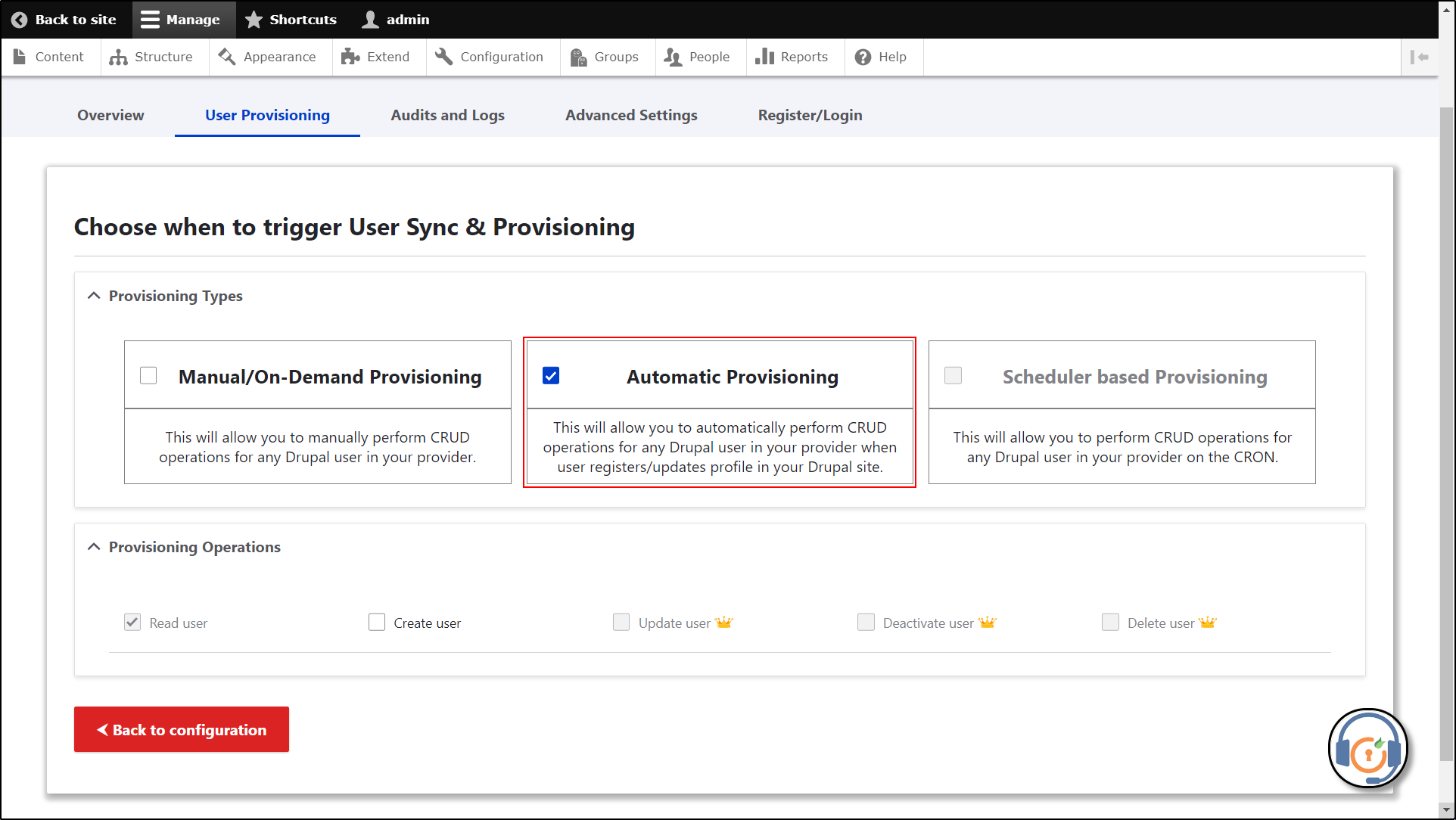
-
Now, select the operation you want to allow during the provisioning. Once done selecting the operations, click on the All Done button.

Let’s see how Automatic Provisioning works:
- By Admin Account:
-
Navigate to the People tab in the top navigation bar. Click on + Add user button.

-
Fill in the details and click on the Create new account button.

- From the left navigation panel, navigate to Users -> User List.
-
Search for the user you just created on the Drupal site.

-
- By registering a new user from the login register window:
- Navigate to the create user window {baseURL}/user/register.
-
Enter the user information and click on the Create new account button.

- Again, go tothe miniOrange Admin Console.
- From the left navigation panel, navigate to Users -> User List.
-
Search for the user.

Congratulations, you have successfully set up miniOrange as the SCIM server and Drupal as the SCIM Client.
 Back to top
Help improve this page
You can:
- Log in, click Edit, and edit this page
- Log in, click Discuss, update the Page status value, and suggest an improvement
- Log in and create a Documentation issue with your suggestion
