
How to create a Tooltip in CKEditor
Last updated on
7 April 2022
This page is an example of how to use the Tooltip module in Drupal.
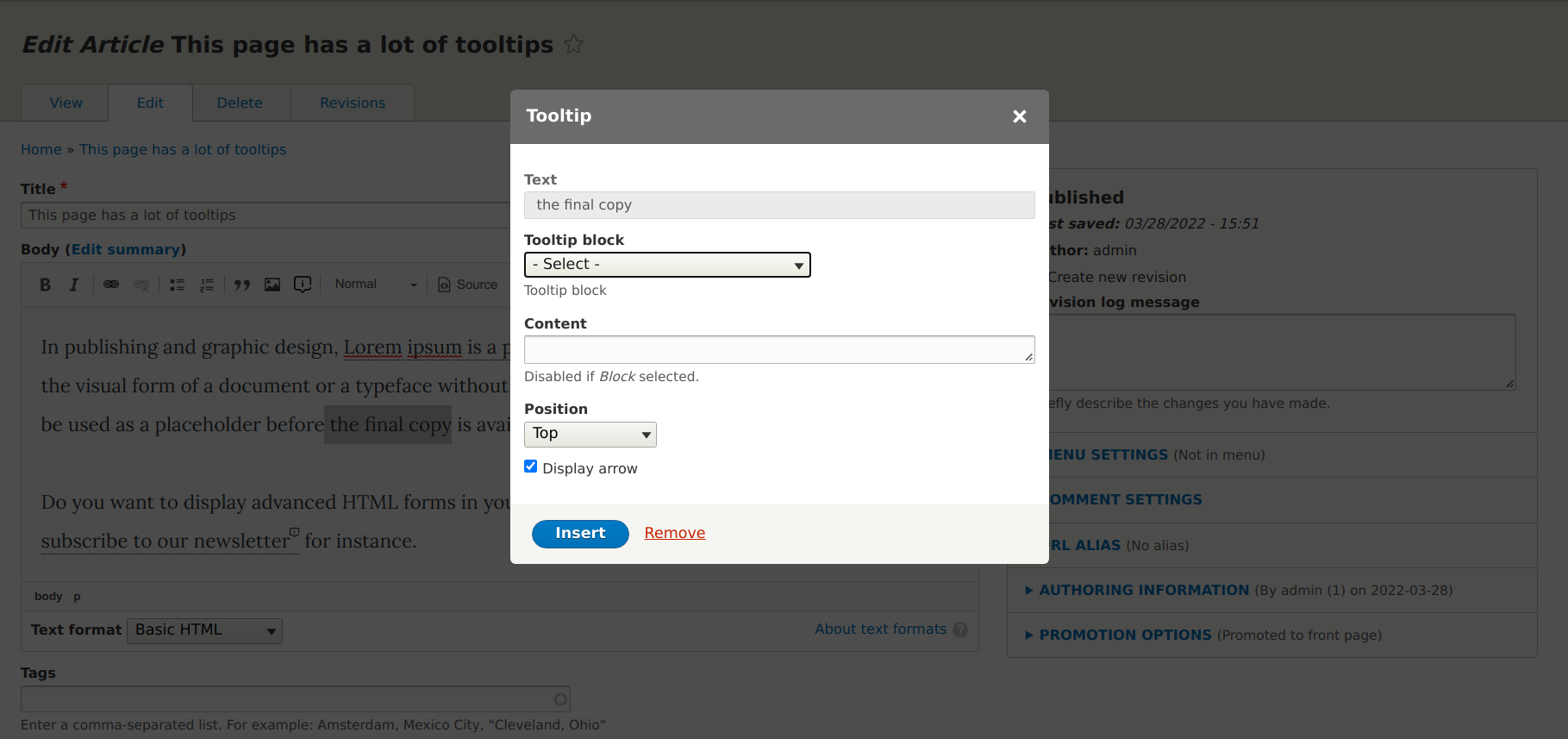
- Select a text in the WYSIWYG
- Click on the Tooltip button in the CKEditor toolbar
- You are provided with a new dialog window (see screenshot above)
- (option 1) Select an existing Tooltip block or Custom block (see "How to create a new Tooltip block below" is the list is empty)
- (option 2) Enter text/markup manually in the Tooltip content input
- Select the tooltip placement
- Select wether or not to display the tooltip arrow
- Click on insert
You have successfully inserted a new span with a custom data-tooltip attribute in your WYSIWYG, such as something like in source code:
<span data-tooltip="{"block":null,"content":"Save the trees 🌲. Do not read the news 🗞️.","placement":"top","arrow":true}">Lorem ipsum</span>
Save your content and visit your frontend to view the Tooltip on hover.
Help improve this page
Page status: No known problems
You can:
You can:
- Log in, click Edit, and edit this page
- Log in, click Discuss, update the Page status value, and suggest an improvement
- Log in and create a Documentation issue with your suggestion

