
Update & upload a Drupal-specific Solr config-set to SearchStax Cloud
When should a new config-set be uploaded to SearchStax Cloud
The are several situations when you should update the configuration of your SearchStax Cloud index:
- After a new Search API server has been created
- After you modified your Search API server settings
- After adding a new language to your Drupal site
- After an update of any module that belongs to the Search API or Search API Solr ecosystems
Normally the Search API Solr module actively warns you if an update of the config-set within Solr is required. But due to the fact that SearchStax Cloud blocks some administrative APIs, the Search API Solr module is not able to detect that. Therefore you're advised to repeat this procedure manually after one of the events above happen.
Download a config-set from Drupal
In order to get the latest config-set, visit the SearchStax Search API server page in Drupal. Click Get config.zip to generate and download the most recent Solr config-set.

Upload a config-set to SearchStax Cloud and activate it
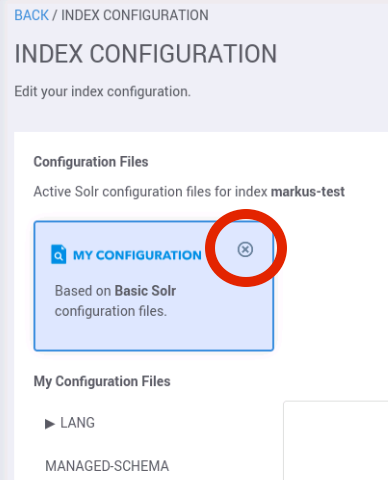
Open and log into the SearchStax user interface. Select the Index you want to update and delete its current configuration. To do so, click the small X in the top right corner of the My Configuaration box.
Now click the Browse button of the Custom Configuration box to upload the config.zip you downloaded from your Drupal site.

Verify that the Custom Configuration box is still selected and click Load Configuration to load that config-set into your SearchStax Index.
Once the single files that belong to this config-set are shown, click Save and Reload Index to activate the new configuration.

Re-index the content
After reloading the the index within the SearchStax user interface it is advisable to re-index your content within Drupal according to the Search API documenation.
Help improve this page
You can:
- Log in, click Edit, and edit this page
- Log in, click Discuss, update the Page status value, and suggest an improvement
- Log in and create a Documentation issue with your suggestion
