
Update user in LDAP
This document will walk you through the configuration steps to sync users between Drupal and LDAP/AD server. Using the Drupal LDAP / Active Directory Integration module you can keep your users synced across multiple applications.
You can also explore the guide to create users in LDAP server whenever a user is created on Drupal site.
The Update user in LDAP/Active Directory server feature mentioned above will help you provision your users using any of the following events:
- Admin Interface :- When administrators or privileged users manually update a user’s account via the Drupal admin interface.
- User account change:- Whenever users themselves modify their own information like email or username etc. form user/user_id/edit or any other custom form.
- 3rd Party Modules:- Whenever a user entity is updated in the Drupal site using any third party modules/applications or custom code.
Prerequisite:
- Install the Drupal LDAP / Active Directory Integration module.
- Setup the above module with your LDAP or Active Directory server. You can also refer to this setup guide for assistance.
Steps to configure LDAP provisioning : Updating User Information in Active Directory/LDAP from Drupal
- Once you have successfully configured the module with your LDAP server, navigate to the LDAP Provisioning tab of the module and scroll to the User & Password Sync section.
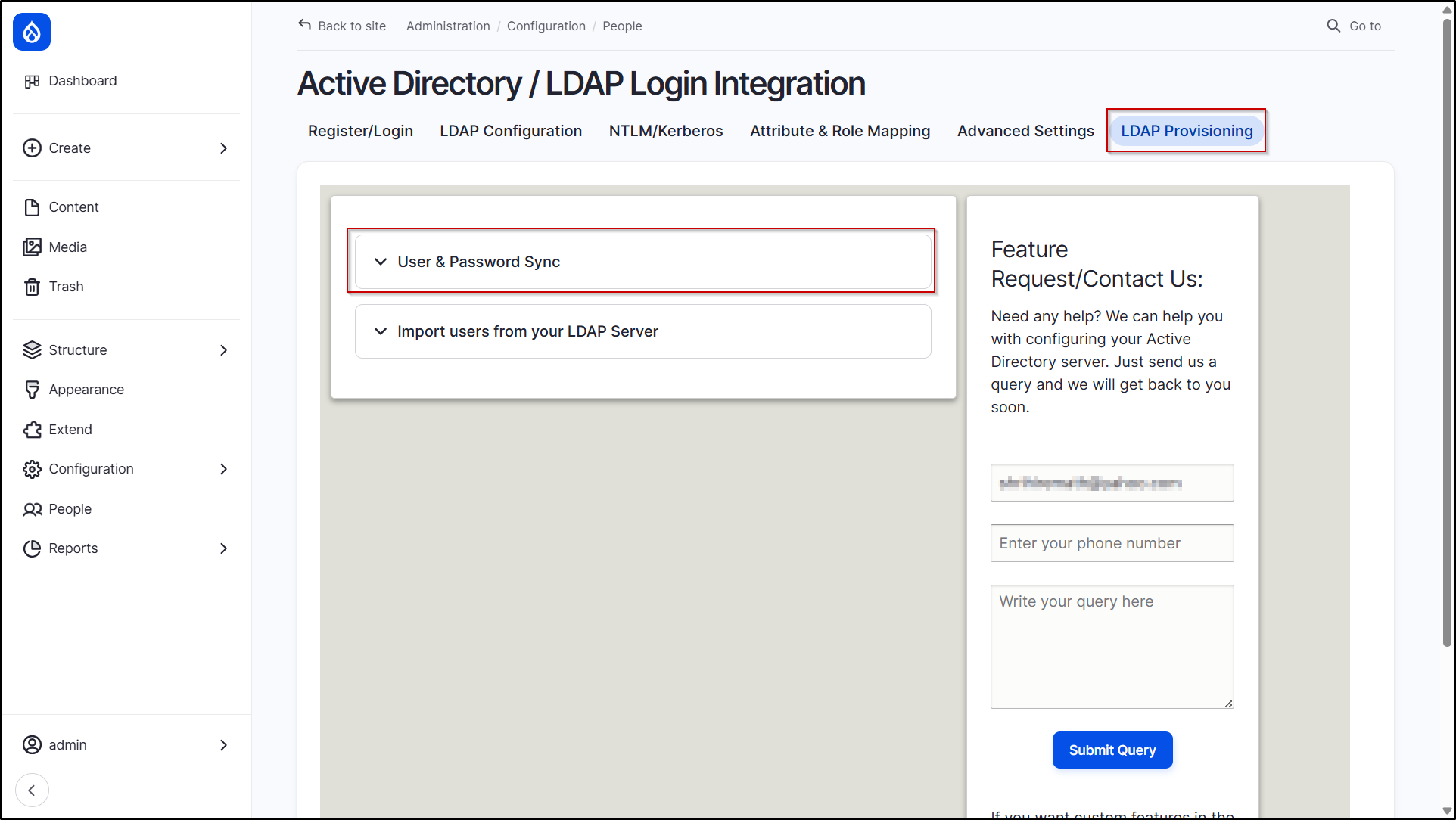
- Enable the Update user information in Active Directory/LDAP when user information is updated in Drupal.

- Scroll down and click on the Save Configuration button.
Note: You can map the user’s Drupal fields to the corresponding LDAP attribute that you want to update in LDAP server under the Attribute & Role mapping tab (config/people/ldap_auth/attribute_mapping). Your users will be updated in the LDAP server based on this saved mapping. You can also map the user Drupal role and LDAP groups.
For eg. As you can see in the above image we have mapped the LDAP userprincipalname to Drupal’s mail field and givenname to the Drupal custom field name. So in this case if we update the user’s mail and firstname in Drupal then corresponding user’s userprincipalname and givenname will get updated in the LDAP/Active Directory server.
Let’s see how this works:
Let us assume that we want to update a user doejohn on the Drupal site as well as on the LDAP/Active Directory server.
- Login to your Drupal site with the admin credentials.
- Once you are logged in as an admin, navigate to the People section of your site (admin/people). Search for the user whose information you want to update and click on the Edit button (/user/user_id/edit).

- Now update the user information as per your requirement and click on the save button.
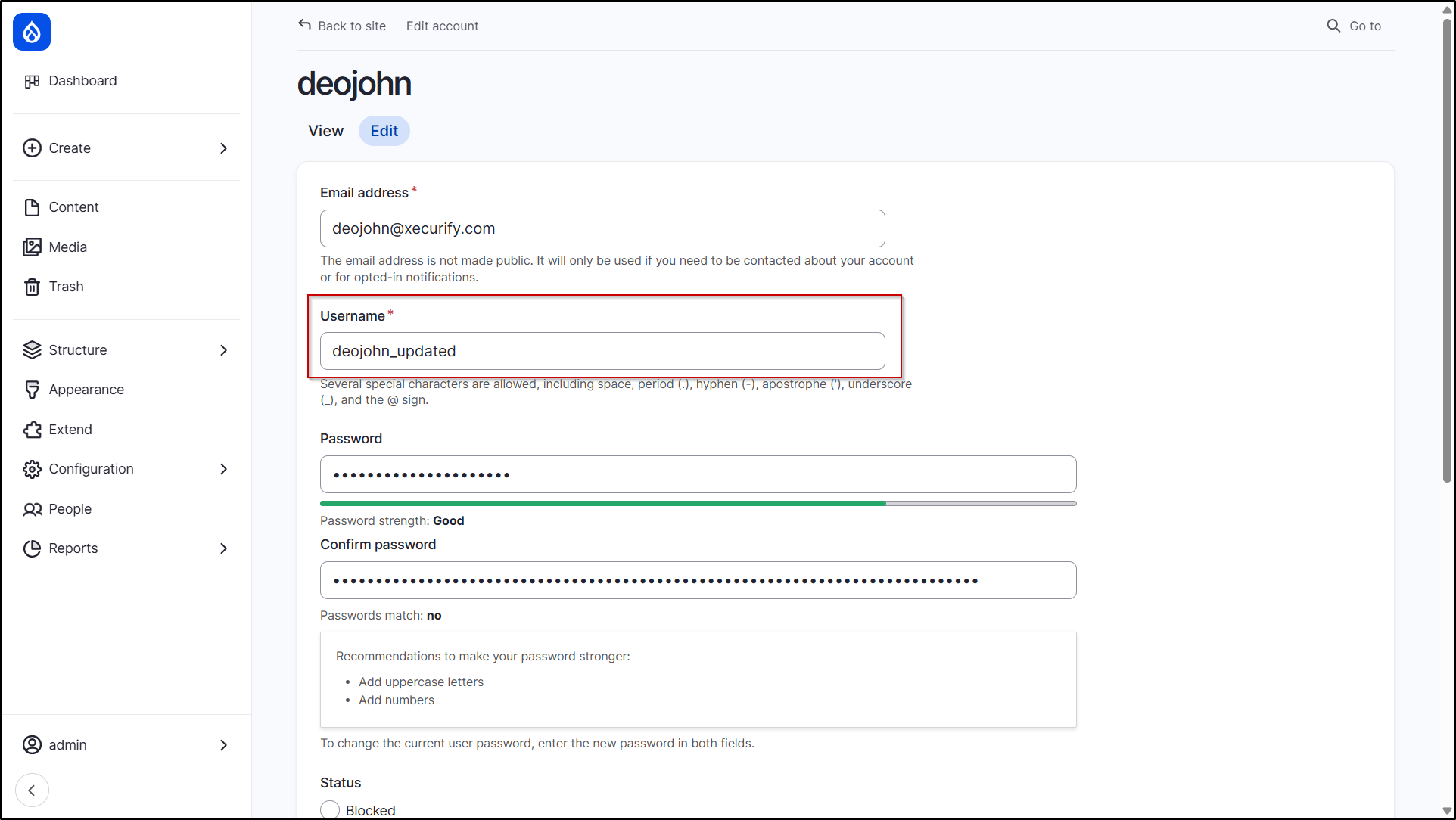
Congratulations you have successfully updated the user’s (doejohn in our case) information in Drupal and your LDAP server. You can confirm it from your LDAP server.
If you don't have access to your LDAP server then you can confirm if the user is updated in the LDAP server by following the below steps.
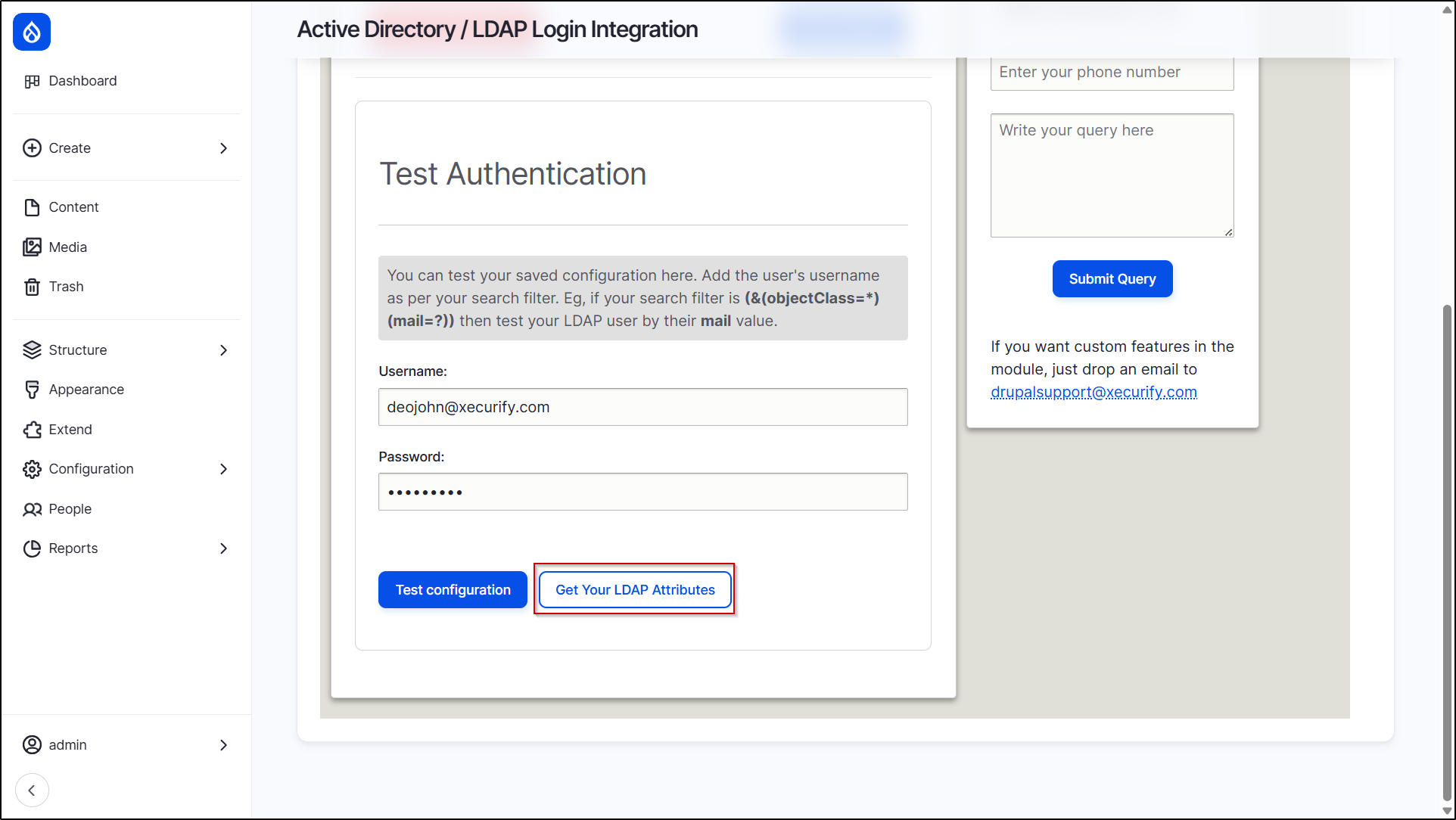
- Navigate to the LDAP Configuration tab of the module and scroll down to the Test Authentication section. Enter the username and password of the user that we updated earlier (doejohn in our case) and click on the Test Configuration button.

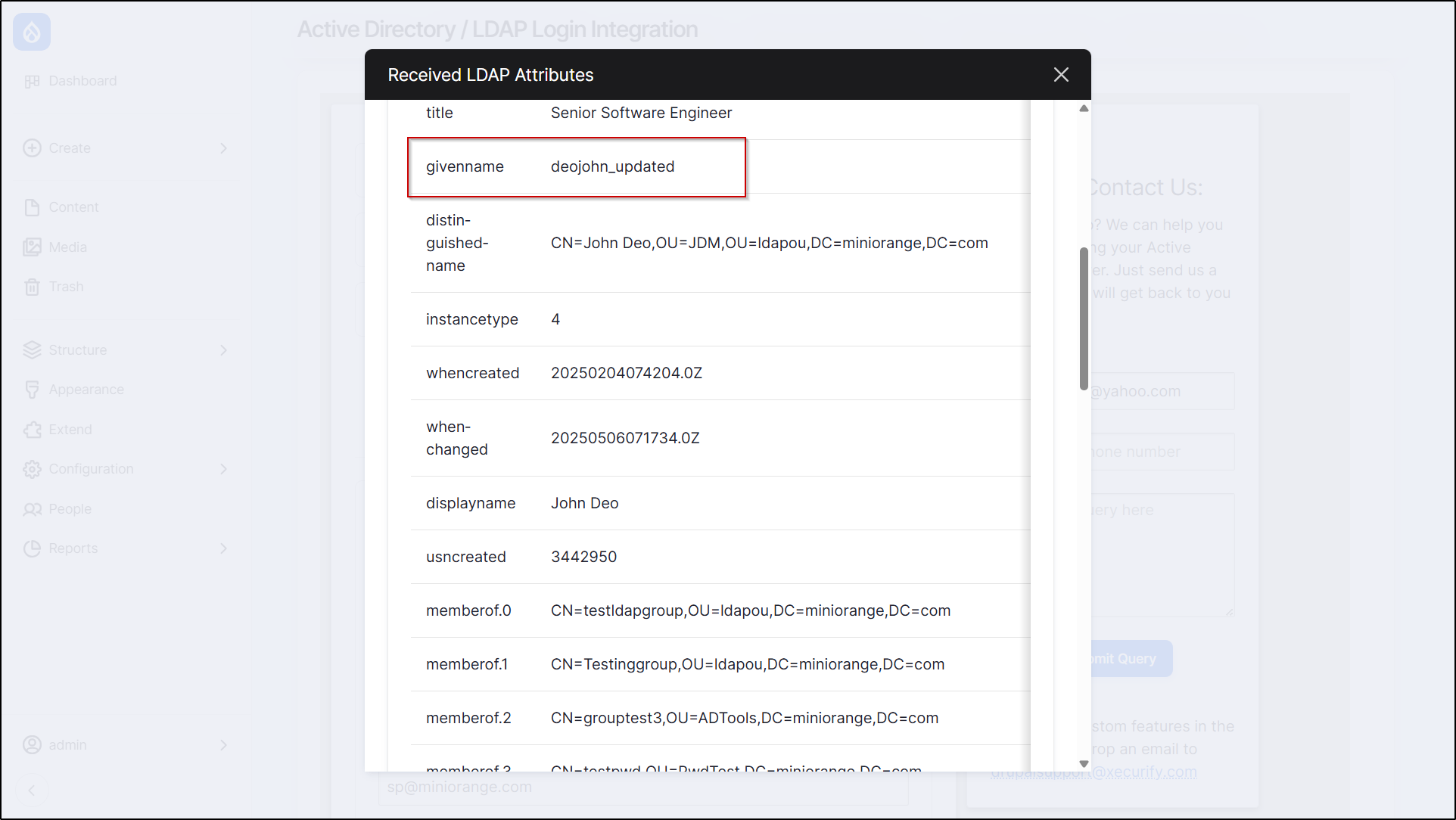
- Once the Test Configuration is successful click on Get Your LDAP Attributes button to check the user’s LDAP entry.
- You can see that the user’s userprincipalname and givenmane in LDAP has changed as per the Drupal mail and firstname respectively.
We hope that you find this guide useful and easy to follow.
Contact our 24*7 support team
Feel free to reach out to our Drupal experts if you need any sort of assistance in setting up LDAP / Active Directory Integration on your Drupal site.
Help improve this page
You can:
- Log in, click Edit, and edit this page
- Log in, click Discuss, update the Page status value, and suggest an improvement
- Log in and create a Documentation issue with your suggestion

