
Tips & Tricks
Working with CKEditor and embedded media
Most modern Drupal installations will have a basic image media entity configured, along with Media Library and its CKEditor plugin for embedding media entities in CKEditor-enabled fields. When combining embedded media with the functionality provided by the Lazy-load module, care needs to be taken to ensure you can still have a pleasant editing experience.
If you have a media entities display image formatter configured for lazy loading, you will find that it works just fine when viewing a normal page! However, without any additional configuration to the Lazy-load module, you will find that the image does no load in the editor when editing your content going forward. It will look something like this:
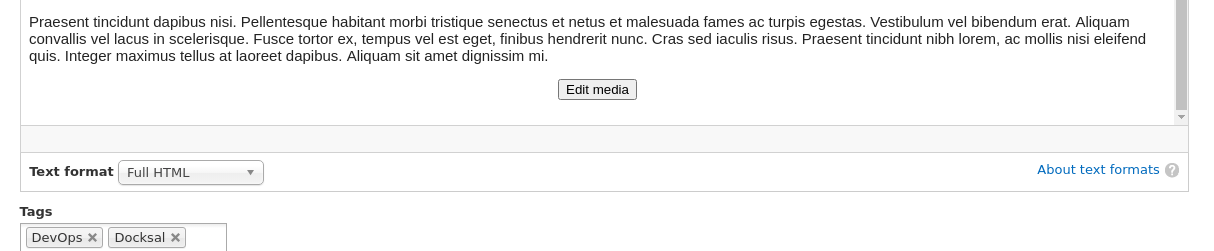
This might happen if you have configured your placeholder image to be the suggested empty data uri. Fortunately, this is easily fixable by editing the Lazy-load module's visibility settings. Just follow these steps:
- Navigate to /admin/config/content/lazy.
- Click the Visibility tab.
- Enter the pertinent preview path for the text format you want to configure (e.g. /media/full_html/preview).
- Alternatively, use /media/*/preview to disable Lazy-load functionality in all media previews.
- Click save.

After following the above steps, you should be good to go! If you edit the page where you previously couldn't see the embedded media image, you should now be able to see it. If you still can't see it, rebuild your cache and refresh the page.
Browser cache settings
Also another thing to check is, when you are playing around with the configuration settings for all of this, make sure you have your browser cache completely disabled while doing this. The HTML payload delivered from /media/{text_format}/preview is cached up to 5 minutes locally (see line 121 of MediaFilterController.php). If you don't have browser cache disabled, and you edit the page and there is no image present, then that will stay that way for up to 5 minutes. So, even if you go and properly configure the visibility settings after this, and reload the page, you still won't see an image until 5 minutes after the last preview was loaded.
In Chrome you can open dev tools and click "Disable cache" in the Network tab, and any further requests made will not be cached while Dev tools remains open in the tab. Additionally, while Dev tools is open, you can right-click on the refresh button and say "Empty Cache and Hard Reload".
Help improve this page
You can:
- Log in, click Edit, and edit this page
- Log in, click Discuss, update the Page status value, and suggest an improvement
- Log in and create a Documentation issue with your suggestion
