
 Come together with the global Drupal community in Rotterdam, 28 Sept – 1 Oct 2026. Sessions, contribution, connection, and Early Bird savings until 8 June.
On this page
Installation and Configuration
This documentation needs review. See "Help improve this page" in the sidebar.
Installation
We have two ways to install the module
1) Install using Composer (Recommended): We recommend to install the module using composer so that it installs the requirements automatically. The module needs Google API PHP client library and this will be installed automatically when we use composer.
Install with Composer: $ composer require 'drupal/google_api_client:^4.0'
Using Composer to manage Drupal site dependencies
Enable to module using drush or drupal UI.
2) Install Manually: You can manually install the module and then you need to manually install the library as well, Steps to install manually
- Download the latest module tar or zip and place it in the DRUPAL_ROOT/modules directory or the site modules directory if you have multisite architecture.
- Make a libraries directory so now we have DRUPAL_ROOT/libraries
- Download the latest release version of google-api-php-client from https://github.com/googleapis/google-api-php-client/releases (Tested with 2.10.0 when writing documentation)
- After unzipping rename the folder so finally you should have DRUPAL_ROOT/libraries/google-api-php-client
- Enable the module and Rebuild drupal cache/Flush cache
Now you have successfully installed the module and next step is to check that the library is Installed and has the service you want to authenticate. You can verify this by
1) Visit the status report screen and it should show that
GOOGLE API PHP CLIENT Installed 2.10.0, in case of you having newer version of the library then it will show that version
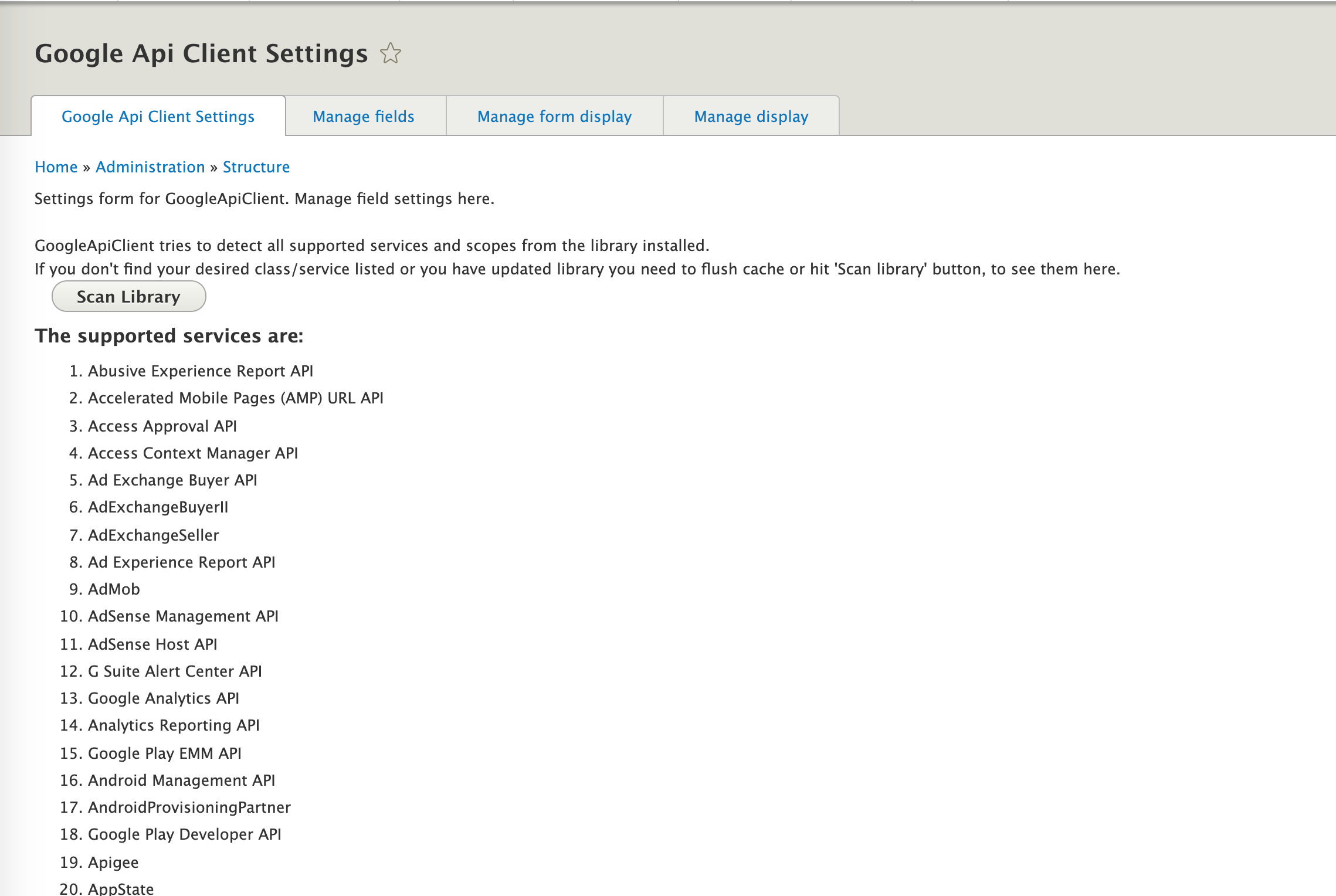
2) Visiting admin/structure/google_api_client_settings on your website i.e. From the toolbar
Manage -> Structure -> Google Api Client SettingsHere you should see all services which are supported by the library, if not then you can click on Scan button.
Configuration
There are two configurations and two entity types added by this module, You need to configure depending on what type of google configuration you did.
1) OAuth Client: If you created a OAuth Client id in the previous step then you need to follw these steps:
- Navigate to admin/config/services/google_api_client i.e. Configuration -> Google Api Client Listing (under webservices)
- Click " + Add Google Api Client Account"
- Fill in Name - Give some name to the api account, Client Id and Client secret from the previous step (google api console), select service like in this case we considered Google Calendar, select scopes you want to authenticate for, More information about scopes can be found here, if you are not sure then select all (just for testing, in case of actual site you should carefully select scopes as that decides what info is accessible to the api call). Leave access type to Offline (here the site can perform operations even when the user is not logged in on google, if unchecked then we need to authenticate everytime we want to make api calls, can be useful to few developers).

- Click Save
- Now it takes you back to the listing page where you can see the new account
- Click Authenticate and folllow the google authentication steps
- After authentication you will be redirected ot the listing page and it will show you Is Authenticated Yes
We are now ready to use this account for calling google api.
2) Service Accounts: If you created a service account follow these steps to configure your accounts.
- Navigate to admin/config/services/google_api_service_client i.e. Configuration -> Google Api Service Accounts Listsing (under webservices)
- Click " + Add Google Api Service Account"
- Fill in Name - Give some name to the api account, Copy the Json contents downloaded from google, select service like in this case we considered Google Calendar, select scopes you want to authenticate for, More information about scopes can be found here, if you are not sure then select all (just for testing, in case of actual site you should carefully select scopes as that decides what info is accessible to the api call). Leave access type to Offline (here the site can perform operations even when the user is not logged in on google, if unchecked then we need to authenticate everytime we want to make api calls, can be useful to few developers).

- Click Save
We are now ready to use this account for calling google api.
Help improve this page
You can:
- Log in, click Edit, and edit this page
- Log in, click Discuss, update the Page status value, and suggest an improvement
- Log in and create a Documentation issue with your suggestion
