
How to insert an image
The content structure
The new media type Cloudinary image will be automatically created after you install the module. The media type contains the following fields:
- Cloudinary Image (field_media_cloudinary_image)
- Cloudinary transformation (field_cloudinary_transformation)
Cloudinary Image field is using Image field type and stores image information in a common Drupal way. The only difference is in the upload destination, it uses remote stream Cloudinary files, so the file URI uses the following schema cloudinary://

The module does not download any images from Cloudinary, it renders images on a fly with a dynamic URL.
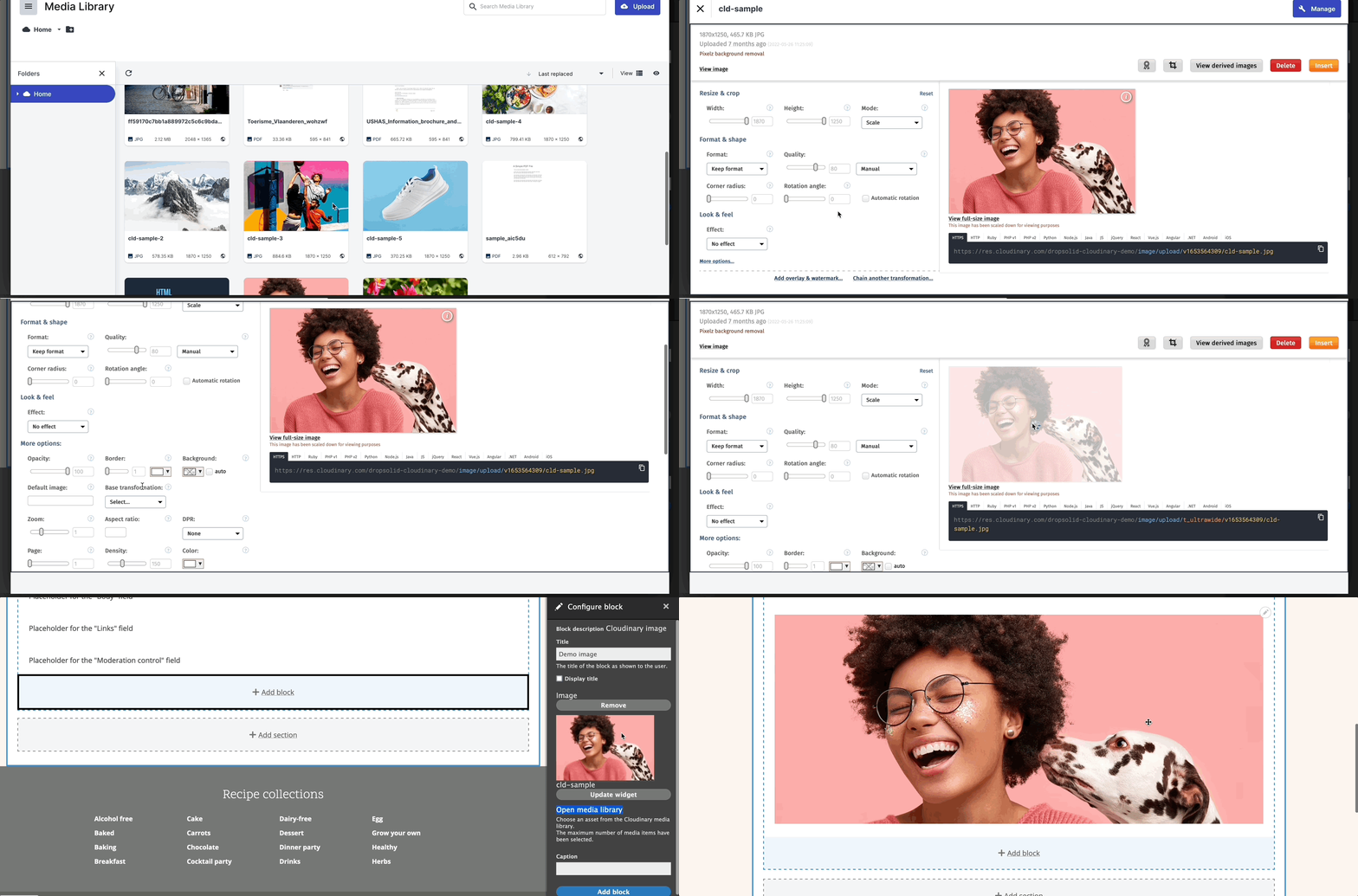
Cloudinary transformation field is used to store custom image transformations created in the Cloudinary media library widget. You can edit any image before inserting it into the site and apply custom transformations.

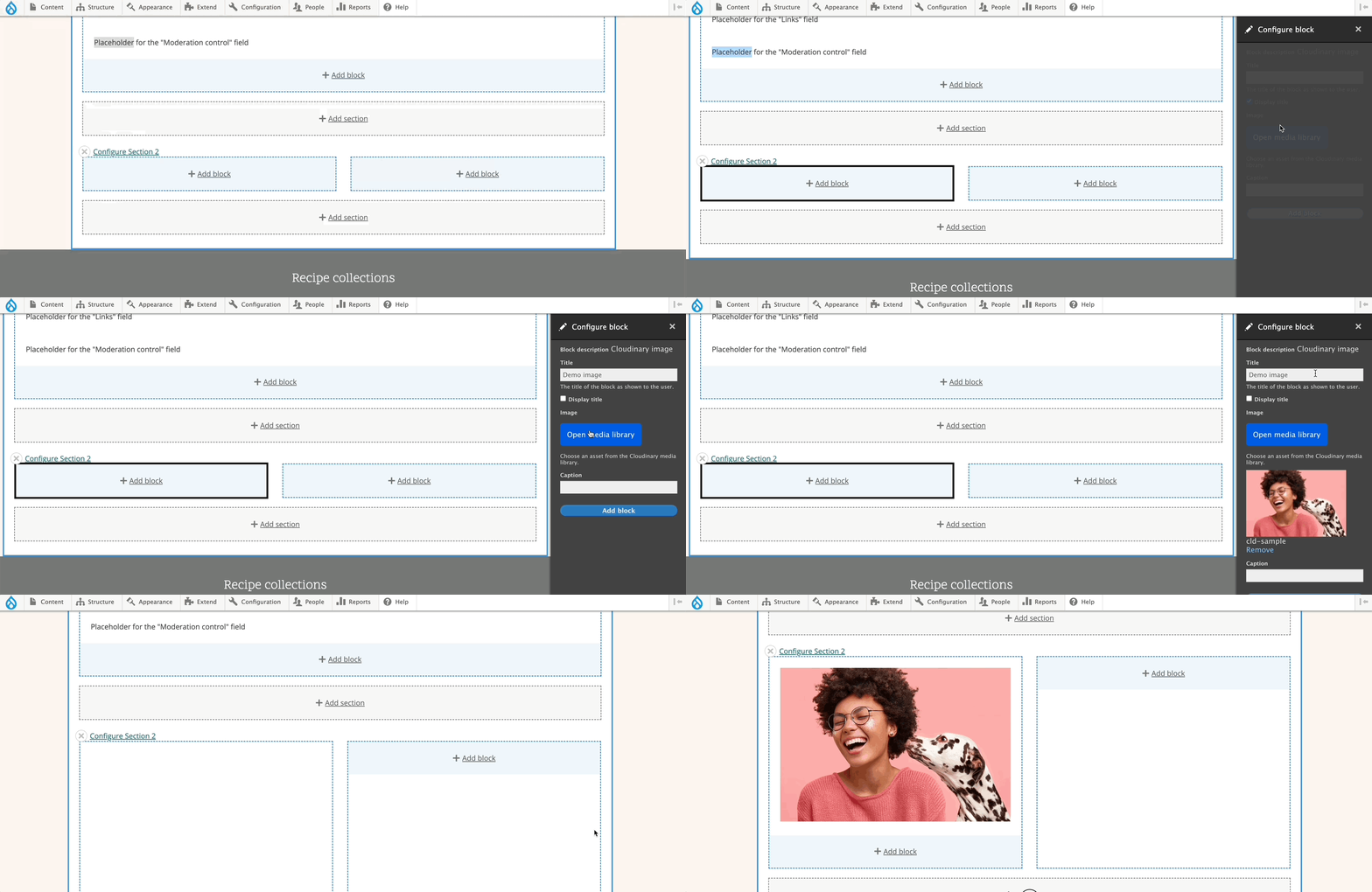
Out of the box, the module provides the new block content type Cloudinary image with the following fields:
- Image (field_cloudinary_media) is a reference to Cloudinary image media.
- Caption (field_cloudinary_image_caption) is used to display a caption under the image.
Place an image on a page
You can use Cloudinary image block to insert it into the layout builder of your page.
Place an image everywhere
You can use Cloudinary media library widget everywhere, there is no limitation, it's working everywhere where media is applicable.
All you need is to have an entity reference field to Cloudinary image media in your entity type AND use Cloudinary media library field widget.
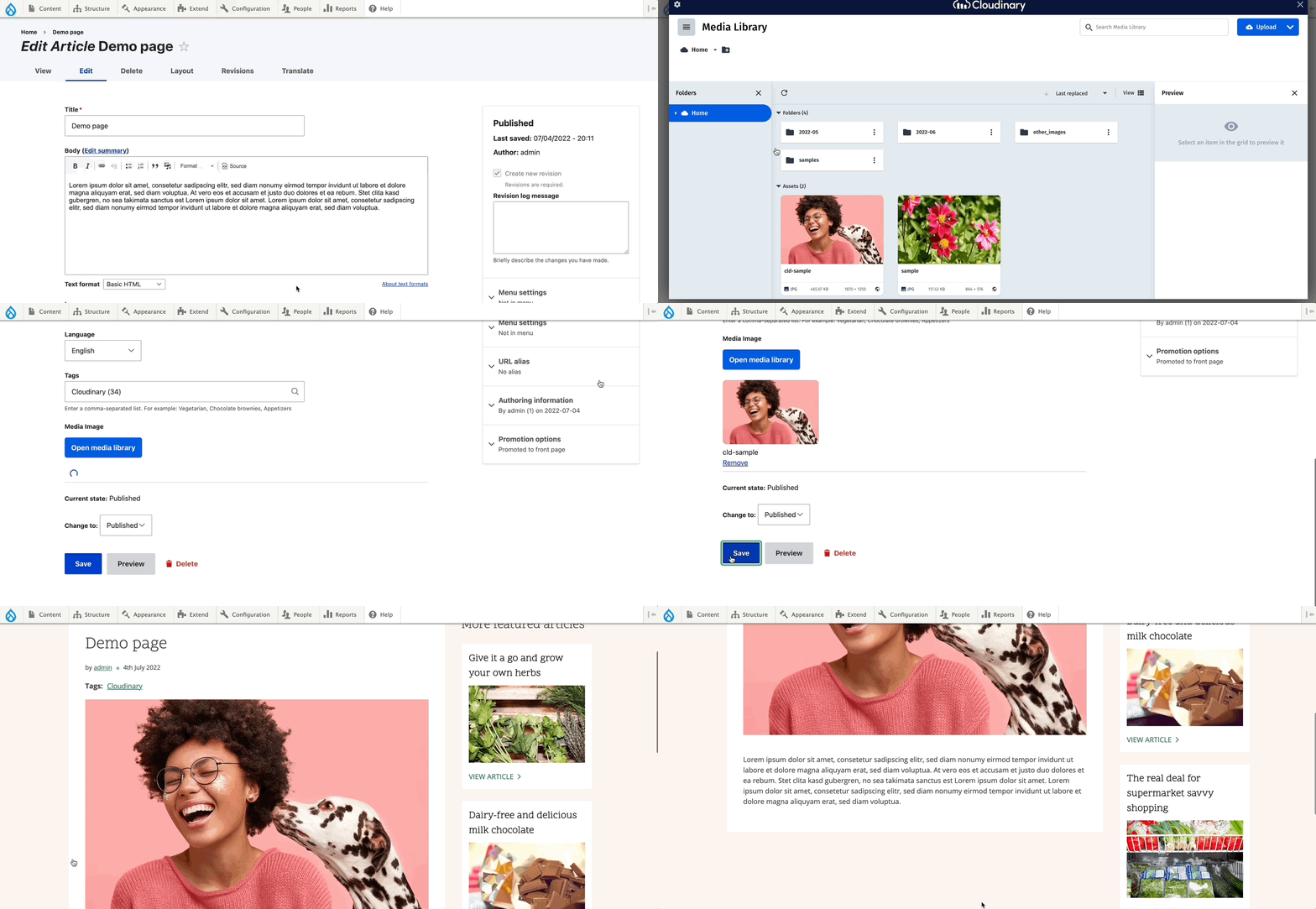
Use Default view mode for your reference field if you want to render an image as it is, but with the following features:
- Default image optimizations
- Responsive breakpoints
- Individual image transformation
Use another view mode if you want to use a specific image style.
Default image optimizations are applied along with individual image transformation. The custom one can override the default one.
How to...
1. Place an image with named transformation applied
In Cloudinary media library widget you can also edit an image and choose a named transformation to use predefined style for your asset.
2. Use alt and title attributes for outputted image
Alt and title attributes are automatically inserted. You can edit those attributes in contextual metadata.
Help improve this page
You can:
- Log in, click Edit, and edit this page
- Log in, click Discuss, update the Page status value, and suggest an improvement
- Log in and create a Documentation issue with your suggestion
