
Configure rate plan settings
The appearance of the rate plan form and the way a developer purchases a rate plan differs slightly based on whether the portal is connected to an Apigee Edge, hybrid, or Apigee X organization.
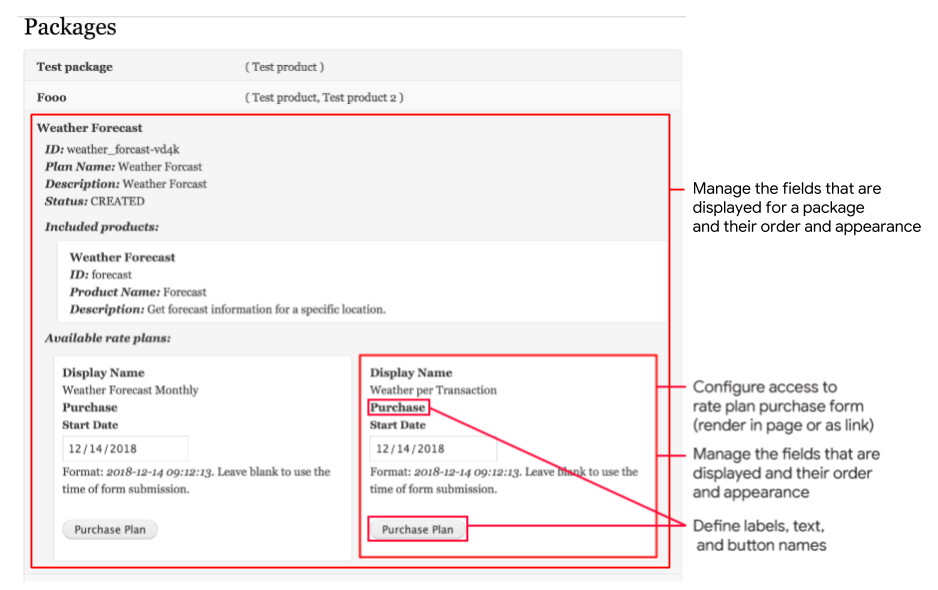
For Apigee Edge-connected portals, developers purchase a rate plan by selecting Purchase Plan in the rate plan form, as shown below:
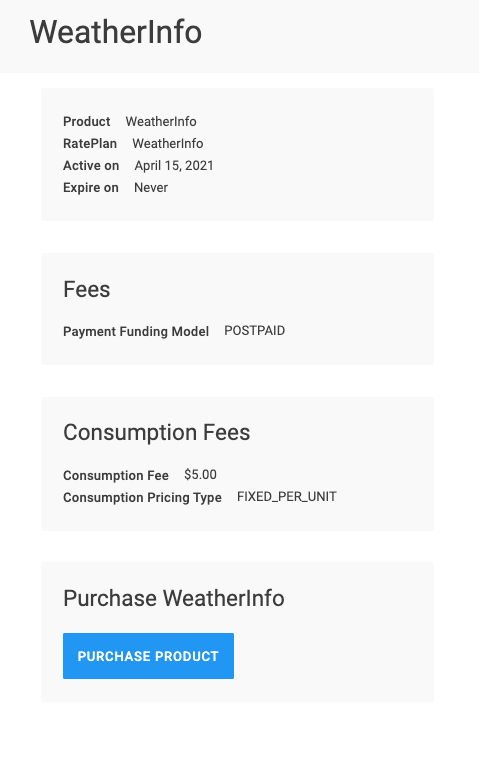
For Apigee X or hybrid-connected portals, developers purchase a rate plan by selecting Purchase Product in the rate plan form, as shown below:
For either rate plan display, you can perform the following tasks to configure rate plan settings:
- Configure access to rate plan purchase form
- Manage fields displayed for a rate plan package
- Manage fields displayed in the purchase rate plan form
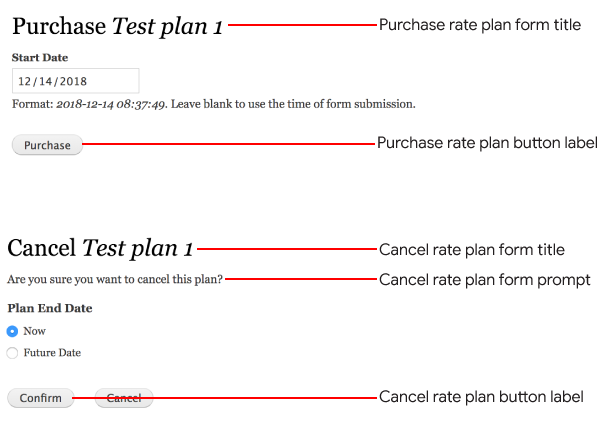
- Define the labels, text, and button names in rate plan forms
- Update the display mode for rate plans
Note: Some UI element names may vary if your developer portal is connected to an Apigee Edge, hybrid, or Apigee X monetized org. Variations are noted where applicable in the detailed instructions below.
Configure access to rate plan purchase form
The purchase rate plan form can be displayed in one of the following locations:
- Rendered directly in the Packages page (Apigee Edge) or the Buy APIs page (Apigee X and hybrid)
- Link to a separate page that contains the purchase rate plan form
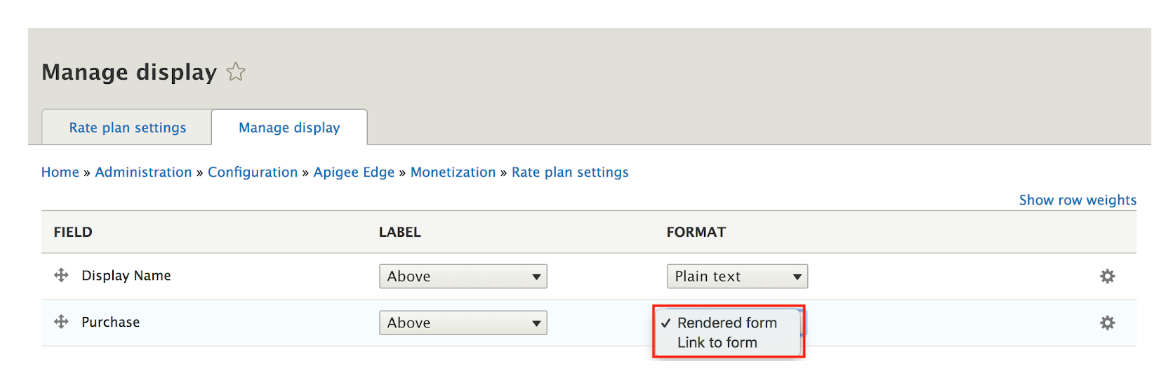
To configure the location to display the purchase rate plan form:
- Select Configuration > Apigee Edge > Monetization > Rate plans.
- Click the Manage display tab.
- Set the Purchase field for Rendered form or Link to form.
- Click Save.
Manage fields displayed for a rate plan package
Manage the fields that are displayed for each rate plan package and their order and appearance on the Pricing & plans page (Apigee Edge) or Buy APIs page (Apigee X/hybrid):
- For Apigee Edge-connected portals, select Configuration > Apigee Edge > Monetization > Packages and click the Manage display tab. Drag and drop the fields between the Enabled and Disabled sections and configure each, as required, and click Save.
- For Apigee X and hybrid-connected portals, select Configuration > Monetization > API Product and click the Manage display tab. Drag and drop the fields between the Enabled and Disabled sections and configure each, as required, and click Save.
The configuration page for Apigee Edge-connected portals is shown in the figure below:

Manage fields displayed in the purchase rate plan form
Manage the fields that are displayed in the purchase rate plan form and their order and appearance on the Pricing & plans page (Apigee Edge) or Buy APIs page (Apigee X/hybrid):
- For Apigee Edge-connected developer portals, select Configuration > Apigee Edge > Monetization > Rate plan purchases and click the Manage form display tab. Drag and drop the fields between the Enabled and Disabled sections and configure each, as required, and click Save.
- For Apigee X and hybrid-connected developer portals, select Configuration > Monetization > Rate plans and click the Manage form display tab. Drag and drop the fields between the Enabled and Disabled sections and configure each, as required, and click Save.
The configuration page for Apigee Edge-connected portals is shown in the figure below:

Define the labels, text, and button names in rate plan forms
For Apigee Edge-connected portals, you can define the labels, text, and button names on the Purchase rate plan and the Cancel rate plan forms by selecting Configuration > Apigee Edge > Monetization > Rate plan purchases and clicking the Rate plan purchase settings tab. Configure the labels, text, and button names, as shown in the following figure.
Update the display mode for rate plan packages
Update the display mode on the Pricing & Plans page, as described in View and purchase rate plans, by performing the following steps.
For Apigee Edge-connected portals:
- Create and configure a new view mode for the Package entity by selecting Structure > Display modes > View modes > Add new view mode and clicking Package. See Display modes: View Modes and Form Modes.
- Select Configuration > Apigee Edge > Monetization > Packages and clicking the Settings tab.
- Select the view mode from the Catalog view mode drop-down.
- Click Save configuration.
For Apigee X and hybrid-connected portals:
- Create and configure a new view mode for the Package entity by selecting Structure > Display modes > View modes > Add new view mode and clicking Rate plan. See Display modes: View Modes and Form Modes.
- Select Configuration > Monetization > Rate plans and clicking the Rate plan X settings tab.
- Select the view mode from the Catalog view mode drop-down.
- Click Save configuration.
Help improve this page
You can:
- Log in, click Edit, and edit this page
- Log in, click Discuss, update the Page status value, and suggest an improvement
- Log in and create a Documentation issue with your suggestion
