
 The 2026 Drupal Business Survey is open. Your response will help shape the future of the Drupal business ecosystem.
Module features overview
First of all, this version consists of built-in CKEditor plugin that allows user to add the view into the editor without following the tag syntax (although this method is still available, refer to OVERVIEW section below).

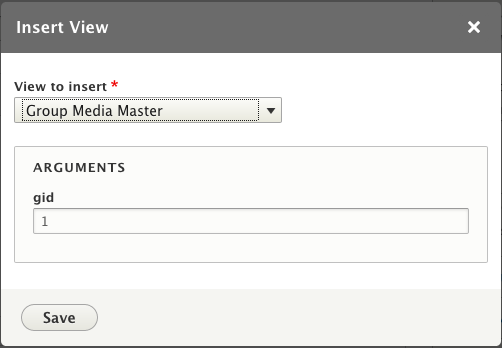
CKEditor plugin provides user friendly interface with a toolbar button and a dialog to choose the view you want to add to your page. Additionally, in the dialog you can see all available contextual filters that current view display has. Normally it even shows the human readable field label (by default it is machine name, but if the field is used only in one entity bundle, the dialog shows the label). And at last, all the entity reference contextual filters now have the autocomplete field input, so the user doesn't have to find the id of the entity.
Secondly, this version fixes the performance problem with entity caching. Now the inserted view uses Drupal placeholders feature, that allows the system to cache the entity and inserted view separately. Moreover, the placeholders are designed in the way that BigPipe module can be used, so now even the "heaviest" view will not frustrate your end customer, because the page will still load fast and the view will appear when it is ready.
SECURITY WARNING
The module provides the ability to be built into CKEditor as a filter. This means that it could be controlled via admin UI. This plugin is very powerful, therefore the filter that uses it should be granted to trusted users only. This is easily done in "Text and formats" section of "Configuration". If you allow this filter to untrusted users, then you have to make sure that EVERY VIEW EVERY DISPLAY (default display also!) has correct views access settings.
OVERVIEW
Old method, but still available:
Insert view filter allows to embed views using tags. The tag syntax is relatively simple: `[view:name=display=args]`. The parameters are: view name, view display id, view arguments. For example `[view:tracker=page=1]` says, embed a view named "tracker", use the "page" display, and supply the argument "1". The display and args parameters can be omitted. If the display is left empty, the view's default display is used. Multiple arguments are separated with slash. The args format is the same as used in the URL (or view preview screen).
Valid examples:
[view:my_view]
[view:my_view=my_display]
[view:my_view=my_display=arg1/arg2/arg3]
[view:my_view==arg1/arg2/arg3]
New method:
use "Insert view" button from CKEditor toolbar with a dialog to add the view with contextual filters to the page.

HOW TO FIND A DISPLAY ID (Optional for new method)
On the edit page for the view in question, you'll find a list of displays at the left side of the control area. "Defaults" will be at the top of that list. Hover your mouse pointer over the name of the display you want to use. A URL will appear in the status bar of your browser. This is usually at the bottom of the window, in the chrome. Everything after #views-tab- is the display ID. For example in http://localhost/admin/build/views/edit/tracker?destination=node%2F51#vi... the display ID would be "page".
INSTALLATION
Extract and save the insert_view folder in your site's modules folder and enable it at admin/build/modules. Obviously, it requires the Views module to do its magic.
Once "Advanced Insert view" module is installed, visit the the input formats page at /admin/settings/filters and click the "configure" link for the input format(s) for which you wish to enable the Insert view filter. Then simply check the checkbox for the filter.

Add the plugin button to your CKEditor toolbar to have a dialog.
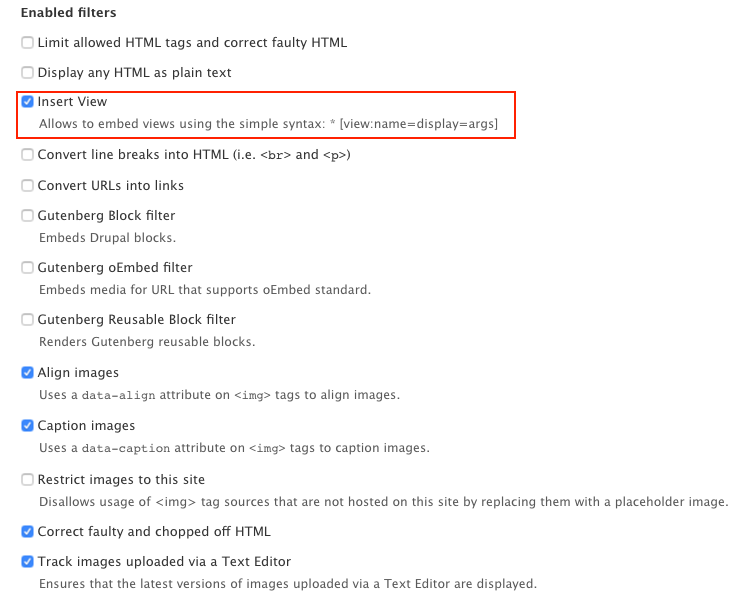
Enable the filter

It is also possible to restrict the allowed views that could be added to the editor.

You can now have the live preview of the view inside CKEditor instead of seeing just the token. In addition you can add the frontend styles to the editor (for this you need to add this option "ckeditor_stylesheets" to your active theme info.yml file, read more here https://www.lullabot.com/articles/styling-the-wysiwyg-editor-in-drupal-8) and then you will see the page exactly how the users see it.
For the version 2
If you have Limit allowed HTML tags and correct faulty HTML you also need to add <drupal-view data-arguments data-display-id data-view-id> to the list of allowed tags.
PERFORMANCE
The module uses Drupal text placeholders and lazy loading (if dynamic cache and BigPipe are enabled)
Help improve this page
You can:
- Log in, click Edit, and edit this page
- Log in, click Discuss, update the Page status value, and suggest an improvement
- Log in and create a Documentation issue with your suggestion
