
 Come together with the global Drupal community in Rotterdam, 28 Sept – 1 Oct 2026. Sessions, contribution, connection, and Early Bird savings until 8 June.
Using Graph Template Files
Because of the massive amount of customization allowed by Plotly.js, the Plotly.Js Graphing module allows for the use of custom user-defined graphing templates.
By default, the Plotly.Js graphing module creates forms for inputting data based on the fields defined for each graph type in the graph_templates folder of the module. Each of these templates contains definitions for every field type available for the graph you are rendering. This causes the editing process for graphs to sometimes be lengthy, as the forms become quite large with the number of settings to modify.
However, in most cases, a large number of these fields will never be used. That is why the Plotly.Js module allows for custom user-defined templates for removing and altering these fields. To begin the process, you must first define a location for your graph templates in the Plotly.Js settings page at Administration > Configuration > Content Authoring > Plotly.Js Settings.

After defining this path, you can then create templates to override the default. You can begin by copying the template file you wish to edit to the new directory. Files not found in the user-defined templates directory will simply use the default file included in the module. Once you have the template file in the new location, you can simply edit it to alter or remove fields.
Plotly.Js supports multiple template files to allow for different layouts. Template files are found in the following order:
PLOT_NAME.yml
PLOT_NAME--ENTITY_TYPE.yml
PLOT_NAME--ENTITY_TYPE--FIELD_MACHINE_NAME.yml
PLOT_NAME--ENTITY_TYPE--ENTITY_ID.yml
PLOT_NAME--ENTITY_TYPE--ENTITY_ID--FIELD_MACHINE_NAME.yml
So for example, 'scatter--node' would be used by all node scatter plots, but 'scatter--node--7' would be used for node 7 only and not by other nodes.
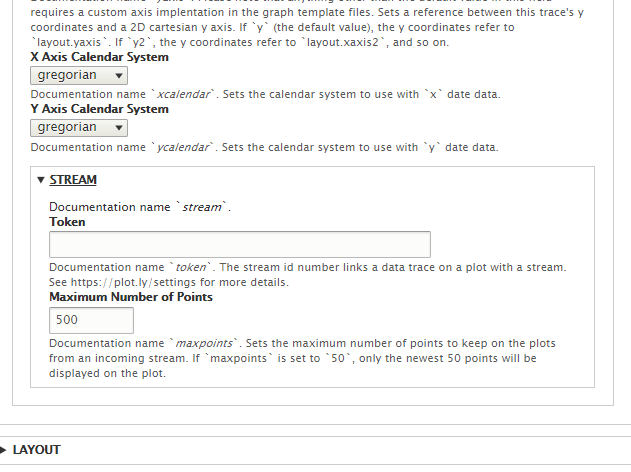
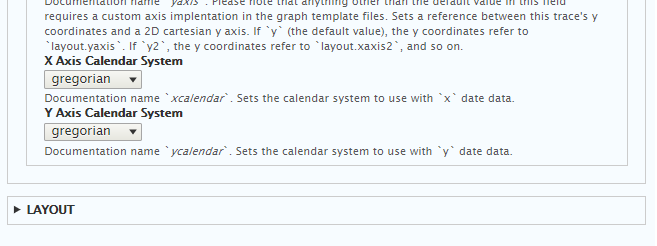
As an example of file editing, in most use-cases, the "Stream" settings are not used for graphs and can be removed. To do so, simply delete the entries for the Stream fields from the template file and save. Upon reloading a page for editing a graph, you can see that the stream settings will have been removed. That's it! You can always add the fields back later by copying them from the default graph templates in the module folder.
Stream settings before:
Stream settings after:
Help improve this page
You can:
- Log in, click Edit, and edit this page
- Log in, click Discuss, update the Page status value, and suggest an improvement
- Log in and create a Documentation issue with your suggestion
