
Module usage
Facebook Instant Articles has two methods of getting content from a website into Instant Articles, RSS and API. In the RSS approach the website hosts an RSS feed of all content that should be published to Instant Articles, eg. http://example.com/instant-articles.rss. In the API approach, the website is connected to Facebook and then when content is saved, updated or deleted, the same operation is carried out in Instant Articles. Following are instructions for using the Drupal module for either approach, beginning with common configuration and then going into specifics with either publishing approach.
Common Drupal Configuration
For either approach, RSS or API, there are some things to get setup first.
- Download the module (development branch is 8.x-2.x). Note that the module has composer dependencies, which also need to be installed (see https://www.drupal.org/docs/develop/using-composer/using-composer-with-d...).
- Enable the Facebook Instant Articles module.
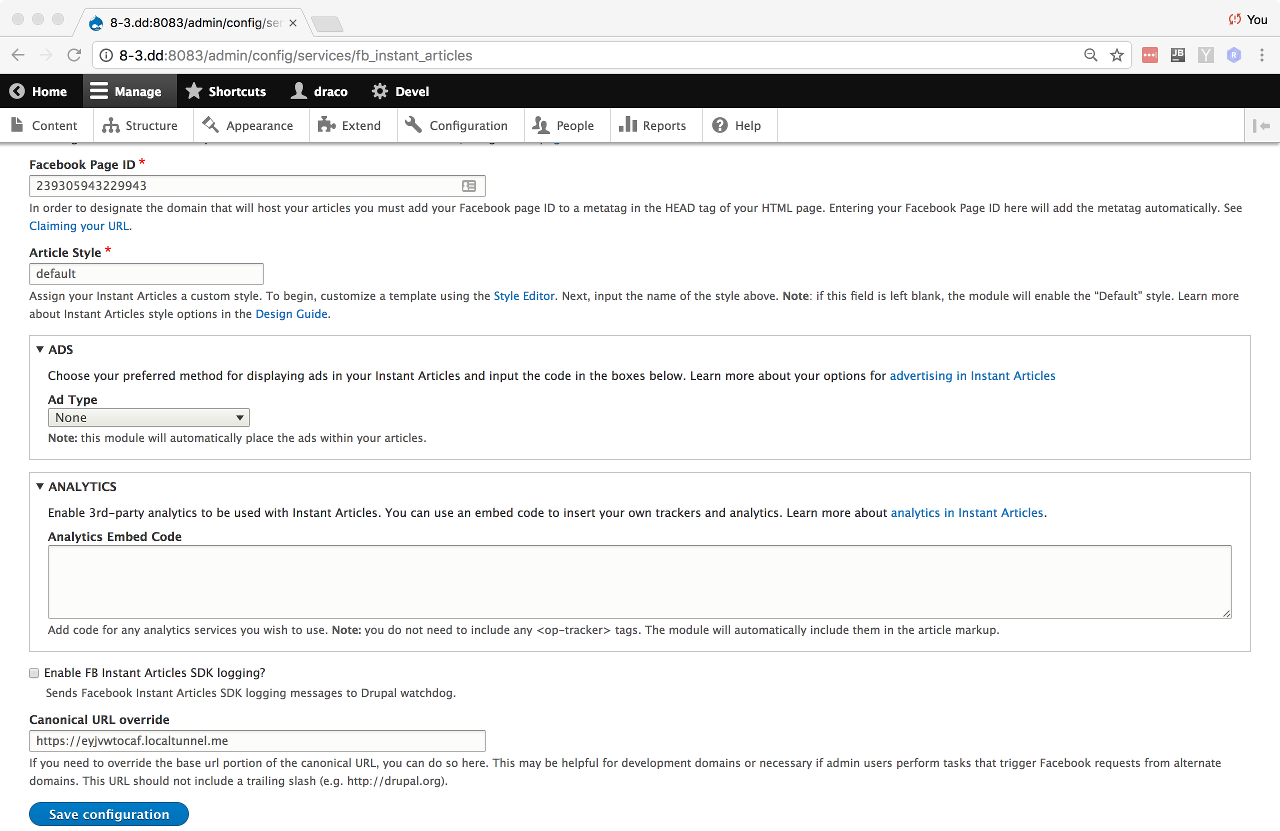
- Configure Facebook Instant Articles settings at
admin/config/services/fb_instant_articles. You can find your Page ID in the Instant Articles Configuration page on Facebook, under "Connect Your Site". There is ample description for each setting, only the Page ID and Article style are required. Article style can be left as "default".
Note: If you are doing local testing, you will need a way to expose your local site to the world so that Facebook can reach it for the purposes of “Claiming your URL”. One approach that has worked is to use http://localtunnel.me. You’ll need to setup a local tunnel, claim the URL you are given in the Facebook Instant Articles administration, and set the “Canonical URL override” setting in the Drupal Instant Article settings page below. If you are testing on a site that is already exposed to the world, you do not need to setup a localtunnel or set the “Canonical URL override” setting. See “Local testing” below for more information.
- Edit a content type (eg.
/admin/structure/types/manage/article) and Enable Facebook Instant Articles for the content type:

- Your content type will now have a Facebook Instant Articles view mode. Edit the Facebook Instant Articles view mode for your content type and setup the fields by dragging them into the appropriate region (Header, Body, or Footer) and choosing an applicable field formatter.

Note: There are a number of special “FBIA” prefixed field formatters that ship with the module to allow you to choose a specific mapping of field data to Facebook Elements. If you do not choose an “FBIA” prefixed field, the module will make a best effort transformation of the rendered HTML output of the chosen field formatter to known FBIA elements. If your field does not have the “FBIA” prefixed field formatter that you want, file an issue and/or submit a patch!
Common Facebook Configuration
Claim the URL you are testing with on the Instant Articles Configuration page in the Facebook web app. If you are testing with a local site, you need employ a method of exposing your local site to the world. See “Local Testing” below for more information.
Local Testing
If you are testing locally, you need a way to expose your local website to the world. One approach that works is http://localtunnel.me.
- Install localtunnel.
- Run
lt -l local.example.com -p 80 -s subdomain, replacinglocal.example.comwith the domain name of your local Drupal site,80with the port with what your site runs on, andsubdomainwith a memorable subdomain name. The-soption is not required, but it’s handy in case you have to re-open your localtunnel later. - Enter the URL you are given into the Drupal module configuration page under "Canonical URL override” (eg. http://subdomain.localtunnel.me).
Note: Localtunnel will give you an HTTPS URL, if your local server is not configured for HTTPS, use HTTP.
- Enter the URL you are given into the Instant Articles Configuration page in the Facebook web app under Connect Your Site and click Claim URL. You may have to try this a couple times, it doesn’t always connect properly.
Note: If you are using the API approach, and having difficulty with connecting your site via the Drupal Facebook Instant Articles API settings form, keep in mind the the URL configured on your Facebook app should be the same URL as the one you are accessing your local site on while attempting to connect it to Facebook.
RSS publishing
To publish content to Facebook Instant Articles via RSS:
- Enable Facebook Instant Articles Views module.
- Create some content that is of a content type enabled for Instant Articles.
- Visit
/instant-articles.rssto verify that the content is there in the feed (should be an<item>element for all content which is published and enabled for Instant Articles. - Go to the Instant Articles Configuration page in the Facebook web app.
- Expand Development RSS Feed and enter the URL of the feed and Save.
Note: If you are doing local testing with localtunnel, ensure that you enter the localtunnel URL.
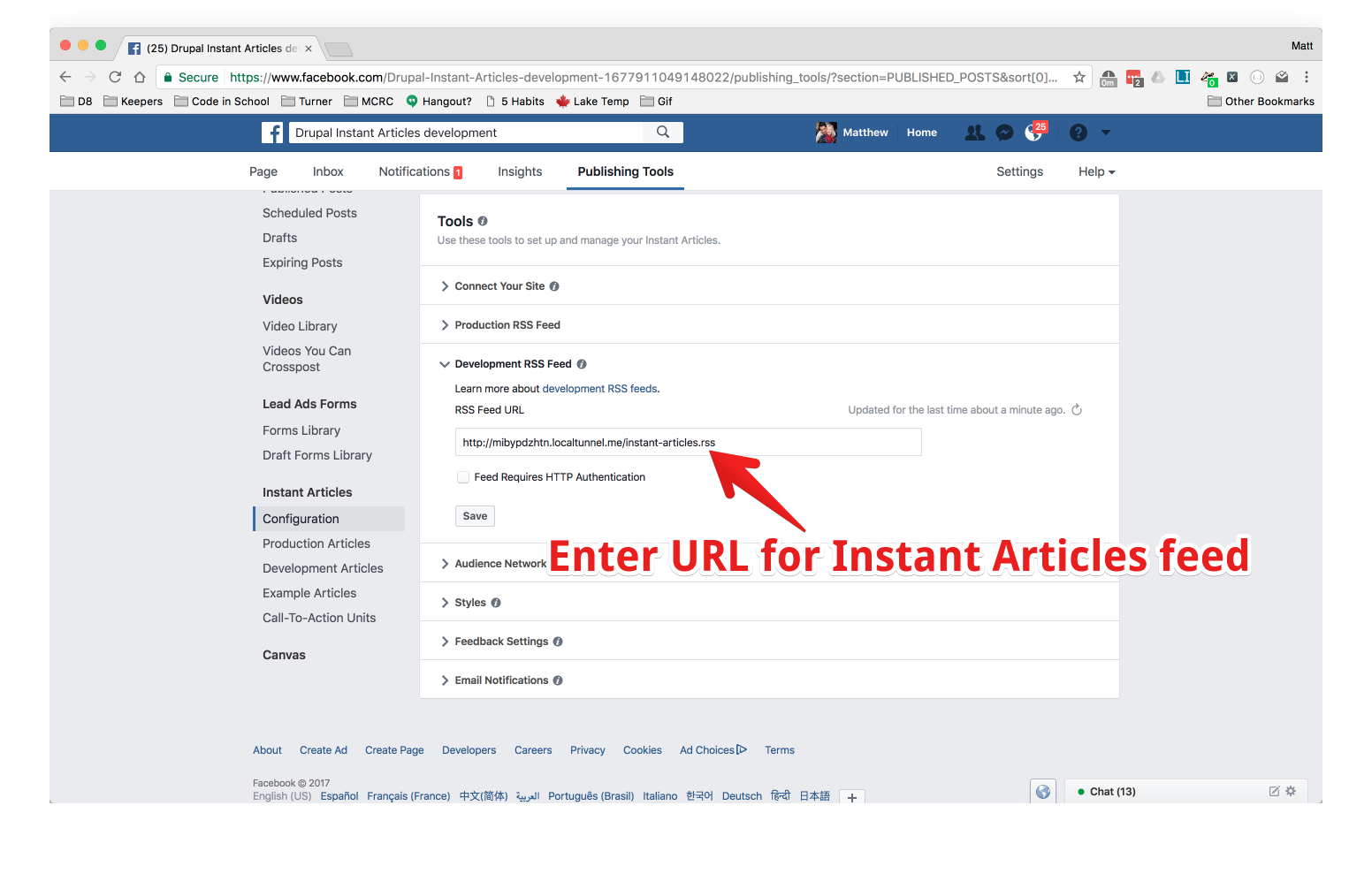
- Click Development Articles in the Facebook web app and you should see the articles in your RSS feed appear here.
Note: There may be a delay in processing the articles. There is a refresh button just above the RSS Feed URL setting for each feed that you can use to force Facebook to re-crawl your feed.
API publishing
To publish content to Facebook via the API:
- Enable Facebook Instant Articles API module.
- Fill in the configuration settings for API access, there are instructions on the form for where to find the necessary values (
/admin/config/services/fb_instant_articles/api_settings).
Note: You will need to create a Facebook App for this step to get a App ID and App Secret to use. When creating your app, be sure to set the App Domain to your local site’s domain (eg. local.example.com).
- Once connected, create/edit/delete content of content type that is enabled for Facebook Instant Articles.
Help improve this page
You can:
- Log in, click Edit, and edit this page
- Log in, click Discuss, update the Page status value, and suggest an improvement
- Log in and create a Documentation issue with your suggestion
