
Entity Browser Views Plugins
With the new release of Entity Browser 8.x-2.2 (or 8.x-1.8), there are two new plugins that allow for more easy customization of your Entity Browser view.
- /src/Plugin/views/argument_default/EntityBrowserWidgetContext.php
- /src/Plugin/views/filter/ContextualBundle.php
Both allow for the dynamic configuration of target bundles for your Entity Browser view, but there are differences. EntityBrowserWidgetContext allows for the use of any parameter within the #widget_context of your entity browser, which you can adjust using custom code and is therefore more flexible. If you write custom code to set your own context parameter, you would want to use EntityBrowserWidgetContext. ContextualBundle only handles bundle, but it is a bit more "out-of-the-box", you just add the filter to your view and it handles the changing the view's allowed bundles as well as the exposed filters without having to configure it. It doesn't handle other types of contexts other than bundle.
Set up instructions:
Go to /admin/structure/views/add
Add a view for nodes

Add entity browser display

Under "Fields", add "Entity Browser Bulk Select Form"

Under "Advanced", click the "Add" button under "Contextual Filter"

Add "Content type" contextual filter

Under "WHEN THE FILTER VALUE IS NOT AVAILABLE" select "Provide default value". If you want to filter based on target_bundles, set Context key to "target_bundles" and the Fallback value to "all".

If you would like to use this view with more than one bundle, make sure at the bottom of the form, under "More", check "Allow multiple values". Since it doesn't hurt anything, you may want to check this even if you plan to use this view with only one bundle. That way if you later want to re-use it on an entity browser on a different field with a different set of bundles, it will work.

Now set up your Entity Browser. Go to /admin/config/content/entity_browser/add
Add an entity browser named "node".
After you save, you'll be taken to /admin/config/content/entity_browser/node/widgets
Under "Add widget plugin", select "View"
Under "View: view display", select the view you would like to use for this entity browser

Press the "Save" button.
Here's an example of the plugin in action on a multi-bundle field:

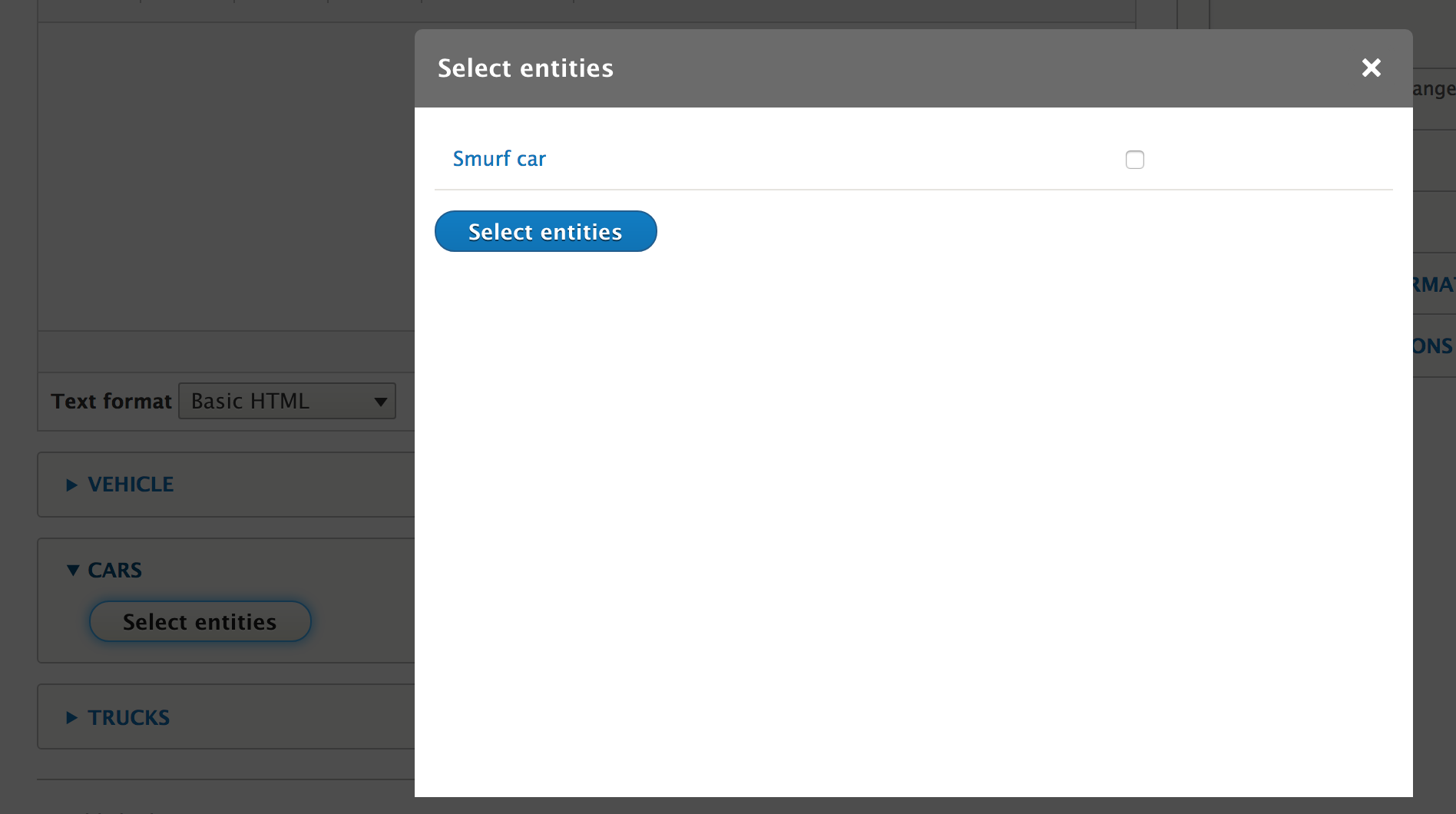
And here's an example of the plugin in action on a single bundle field:
Set up instructions:
Go to /admin/structure/views/add
Add a view for nodes
Add entity browser display
Under "Filter Criteria", add "Entity Browser Target Bundles"

If you would like to use exposed filters, you can select that option.

Save your view.
Now set up your Entity Browser. Go to /admin/config/content/entity_browser/add
Add an entity browser named "node".
After you save, you'll be taken to /admin/config/content/entity_browser/node/widgets
Under "Add widget plugin", select "View"
Under "View: view display", select the view you would like to use for this entity browser
Press the "Save" button.
Here's an example of the plugin in action on a multi-bundle field:

If you would like to customize the filter label, for example to say "Type", you can do that by reopening the view configuration form, reopening the filter settings form.

Help improve this page
You can:
- Log in, click Edit, and edit this page
- Log in, click Discuss, update the Page status value, and suggest an improvement
- Log in and create a Documentation issue with your suggestion
