
 Come together with the global Drupal community in Rotterdam, 28 Sept – 1 Oct 2026. Sessions, contribution, connection, and Early Bird savings until 8 June.
On this page
Installation
Commerce Square Connect, like all Commerce modules, must be installed via Composer. For more information why, and how to use Composer see the Drupal Commerce documentation on Using Composer.
To install the Commerce Square Connect module you must first add it to your Drupal 8 site. To do so you run the following commands. This will ensure that the Square PHP SDK is installed and available to your Drupal 8 installation. It will then download the latest Commerce Square Connect module
$ cd /path/to/drupal/8
$ composer require drupal/commerce_square
Once the Commerce Square Connect module has been added to your Drupal 8 site, you can install the module. Visit the Extend page from the administration toolbar. Install the Commerce Square module.
These next steps will give you detailed information about how to configure the following integration-specific fields: Square Application ID, OAuth Application secret, and Square OAuth Redirect URL from the Connect section, and Sandbox Application ID and Sandbox Access Token from the Advanced Settings section.
Create an application in the Square Developer Portal. You will need to have a merchant account with Square in order to set up an application that will integrate with this extension. You can sign up for a merchant account at https://squareup.com/signup/.
Once you have set up your account and logged in to your Square Dashboard, follow these steps to create your application:
- From the Sidebar, choose Apps to go to the App Marketplace
- In the top right-hand corner, select My Apps
- In the Square Connect section, click the Go to Developer Portal button which will take you to the Developer Application Dashboard
- Select + New Application

- Fill in the Application name. This name is for you to recognize the application in the developer portal and is not used by the extension.

- Click the Create Application button at the bottom of the page.
- You will be taken to the Manage App screen for your newly created application where you can configure it. If you wish to come back to this screen at a later date, you can find it in your Square account dashboard by navigating to Sidebar > Apps > My Apps and clicking Manage App for the application you want to modify.

Connect the Square extension to your Square application. Keep your Square application page as you’ll be going back and forth between this window and your Drupal admin page.
- Visit Store from the administrative toolbar to access the Drupal Commerce administrative links.
- Click on Configuration and then Square settings (admin/commerce/config/square) to configure the Square Connect application.
- Enter details about your Square Connect application, which can be found at https://connect.squareup.com/apps
- Application Name: on Drupal admin page:
- Go to your Square application page, copy and paste the “Application Name”
- Application Name: on Drupal admin page:
 |
 |
- Application ID:
- Go to your Square application page.
- Copy and paste the “Application ID”
 |
 |
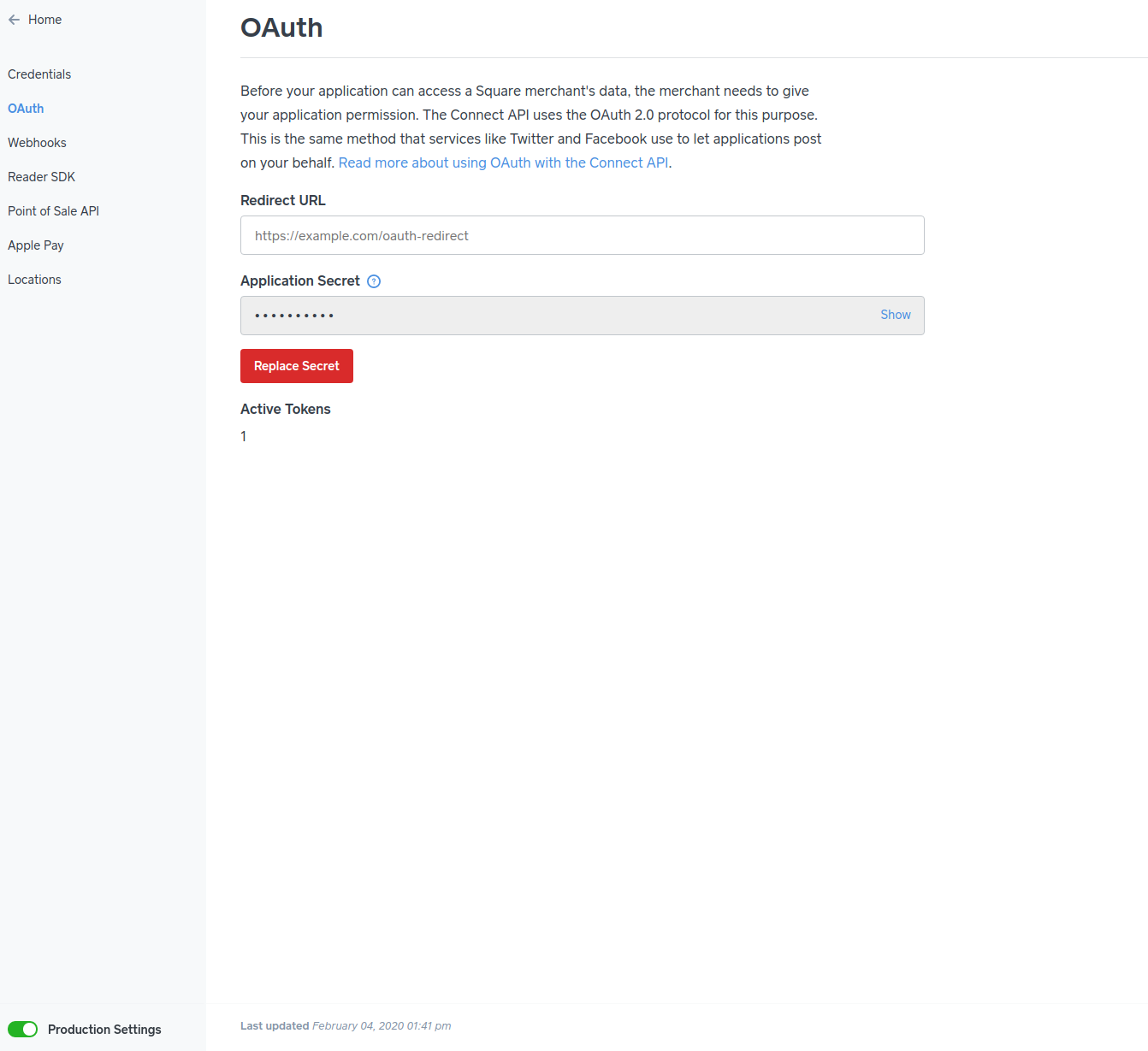
- Application Secret:
- Go to your Square application page.
- Switch the Square application mode to production (this will be fixed in an issue linked here.)
- Click on the “OAuth” tab, under “Application Secret”
- Click “Show Secret”, copy and paste “Application Secret into Drupal admin page.
- Switch the square application mode back to sandbox.
 |
 |
- Sandbox Application ID:
- Go to your Square application page.
- Click the “Credentials” tab.
- Copy the “Sandbox Application ID” and paste it into the Drupal admin page.
 |
 |
- Sandbox Access Token:
- Go to your Square application page.
- Click the “Credentials” tab.
- Copy the “Sandbox Access Token” and paste it into the Drupal admin page.
 |
 |
- Redirect URL:
- Go to your Square application page.
- Click the "OAuth" tab.
- Copy the Redirect URL from Drupal to the Redirect URL on Square
- Note: You must do this also for the production as well. Until (issue) is solved.
- Switch mode in Square to Production.
- Copy the same Drupal value to the Production Redirect URL in the OAuth tab in Square.
- Switch mode back to Sandbox in Square.
- Hit save on Square.
 |
 |
 |
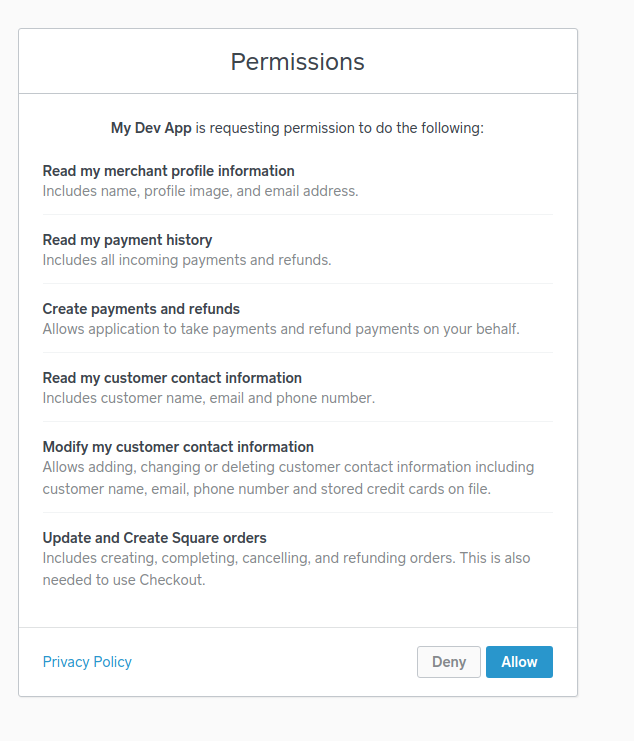
- Once the information is entered, press Save. You will then be redirected to Square to authenticate the application, allowing your Drupal Commerce store to interact with Square.
Enable the Commerce Square payment gateway in Drupal Commerce
- Go back to the Configuration page for the store and click Payments, and then Payment gateways.
- Click + Add payment gateway to add a Square Connect gateway.
- Provide a name for the gateway, such as Square Connect.
- Select Square as the payment gateway plugin.
- Set the display name, which is viewable to the customer, to something of your choice.
- Select the Square store location to use
- Save the payment gateway
Important notes
This extension requires SSL to be set up correctly for your store. If the address for the Redirect URL is using the HTTP protocol instead of https, the Square developer portal will refuse to accept it and you will not be able to connect the extension to the application. If you have SSL enabled, make sure you are accessing the Drupal administration panel over https when copying the **Square OAuth Redirect URL** field and that it is correctly displaying an https address.
Once you have set up the Redirect URL in the Square application and filled out the Square Application ID and OAuth Application Secret in the extension's administration settings, you can click the Connect button to initiate the connection. You will be redirected to https://squareup.com/ to authenticate using the credentials for the Square account you used to create your application in Step 1. If you are already logged into your Square account in another tab or browser window you will not be asked to provide credentials, your Square account will be automatically detected, and you will be redirected back to the extension's administration settings. If there are any error messages, make sure you have filled out the Square Application ID and OAuth Application Secret fields correctly.
If you ever wish to change the Square account or application that the Square Payment Services extension is connected to, create your new application as in Step 1, fill in your new Application ID, Application Secret, Sandbox Application ID, Sandbox Access Token, and Redirect URL as described in Step 2, then click the Reconnect button in your Drupal extension settings.
Help improve this page
You can:
- Log in, click Edit, and edit this page
- Log in, click Discuss, update the Page status value, and suggest an improvement
- Log in and create a Documentation issue with your suggestion
