
Integration with Media module
Summary
The Image Replace module provides a new image effect. When the effect is used in an image style it will act as a placeholder for the content of another image field. In order to use Image Replace together with a Media field, the following steps are required.
Basic Setup
Note: Steps 1 and 2 are the same as in Responsive Images for art direction.
Step 1: Add new image styles
Navigate to Administration » Configuration » Media » Image styles and add two new image styles (Image Replace Large and Image Replace Medium). Add Replace image as the only image effect to both styles.

Step 2: Add responsive image style
Navigate to Administration » Configuration » Media » Image styles and create a new responsive image style. Select a breakpoint group (e.g., Bartik). For every breakpoint choose select a single image style and select one of the image styles you created in step 1.

Step 3: Add new media type
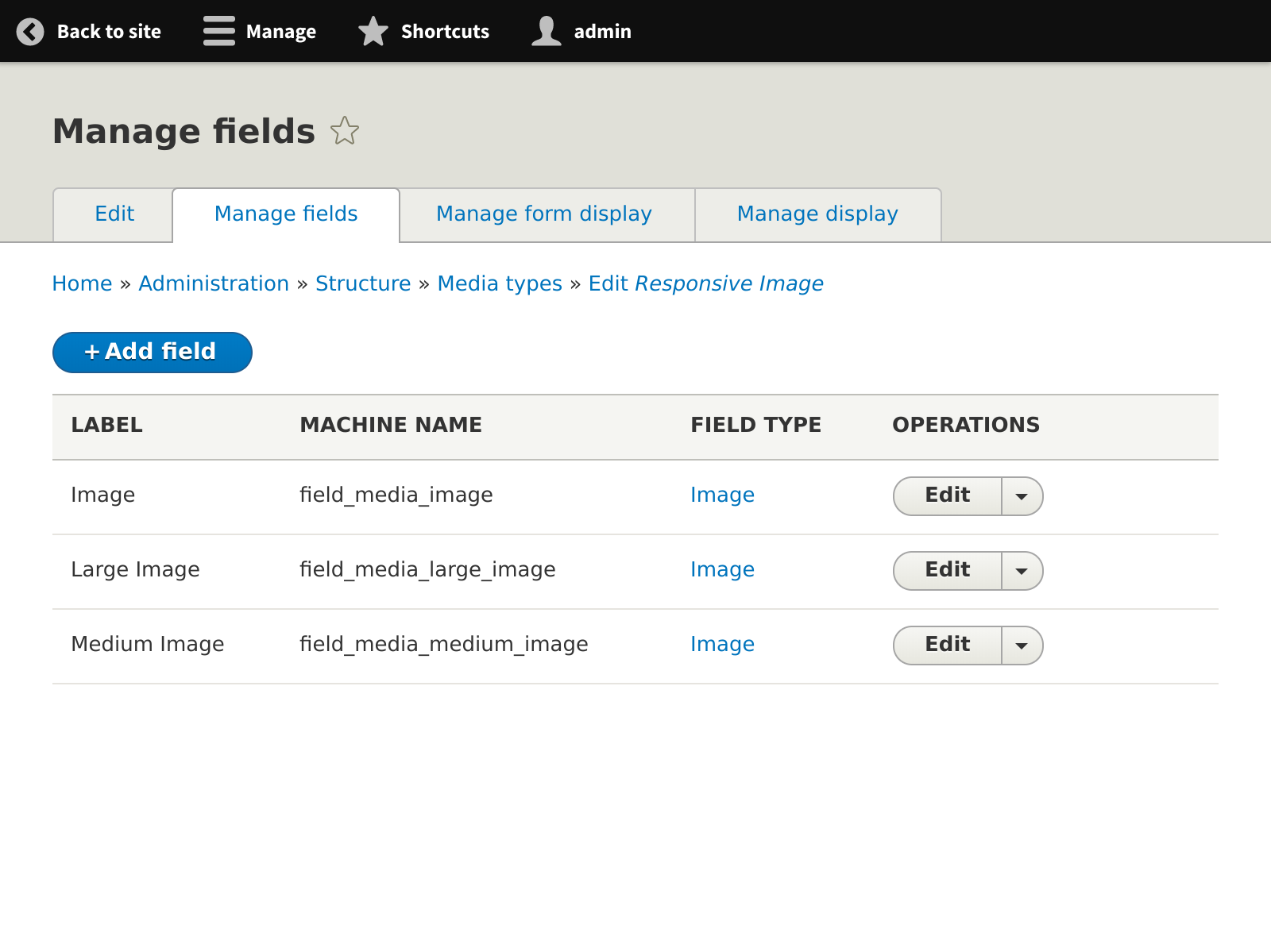
Navigate to Administration » Structure » Content types » Media types and create a new media type. Use Image as the Media source. Navigate to Manage fields on the freshly created media type and add two new image fields (Image Large and Image Medium). Use the same settings as in the existing Image field, optionally tweak the description a bit.

As a result the Responsive image media type should have the following list of fields:
Step 4: Configure replacement styles on the image field
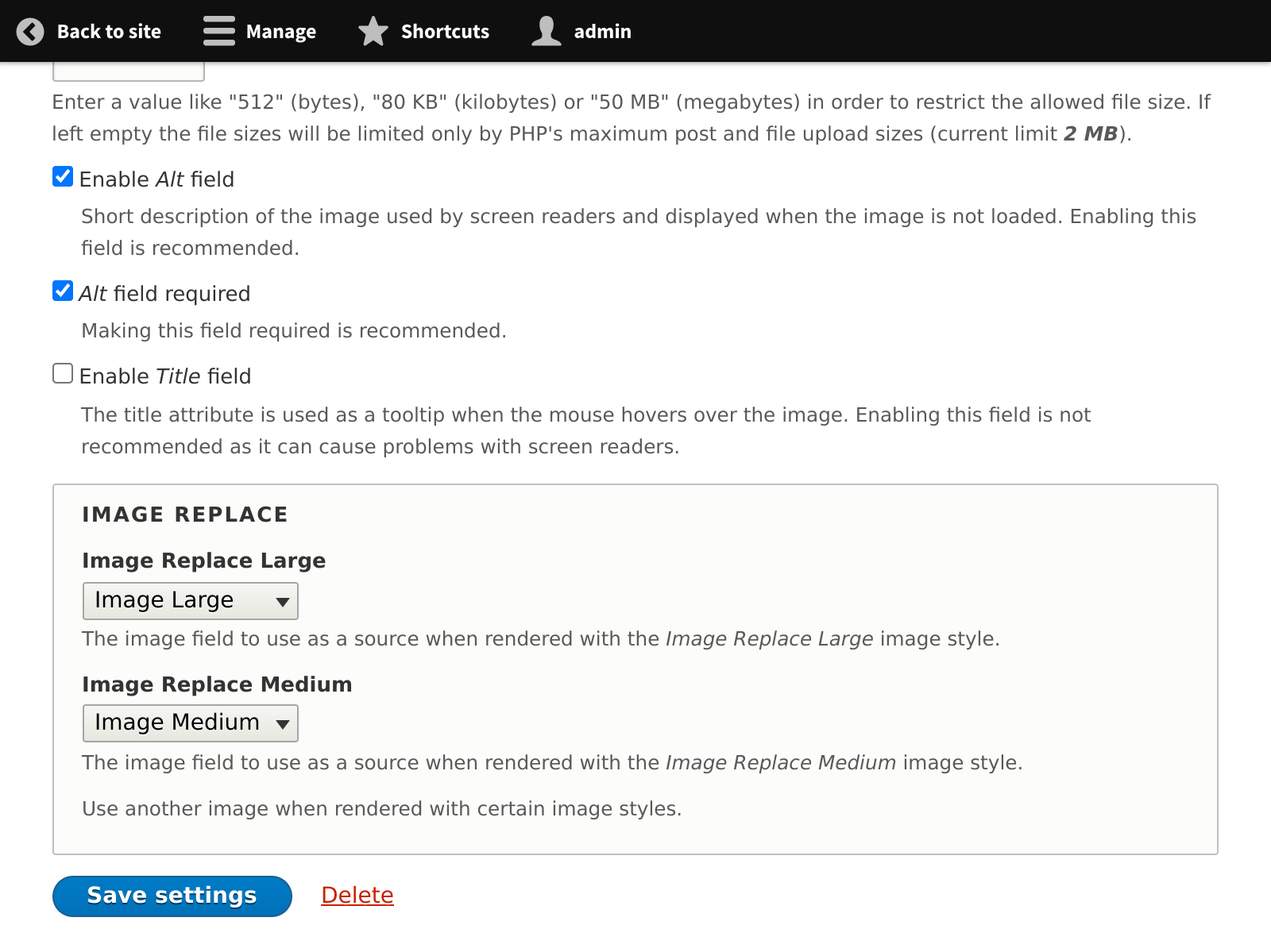
Edit the setting of the original image field and specify Image Large and Image Medium as the sources for the Image Replace Large and Image Replace Medium image styles respectively.
Step 5: Configure responsive image formatter on image field
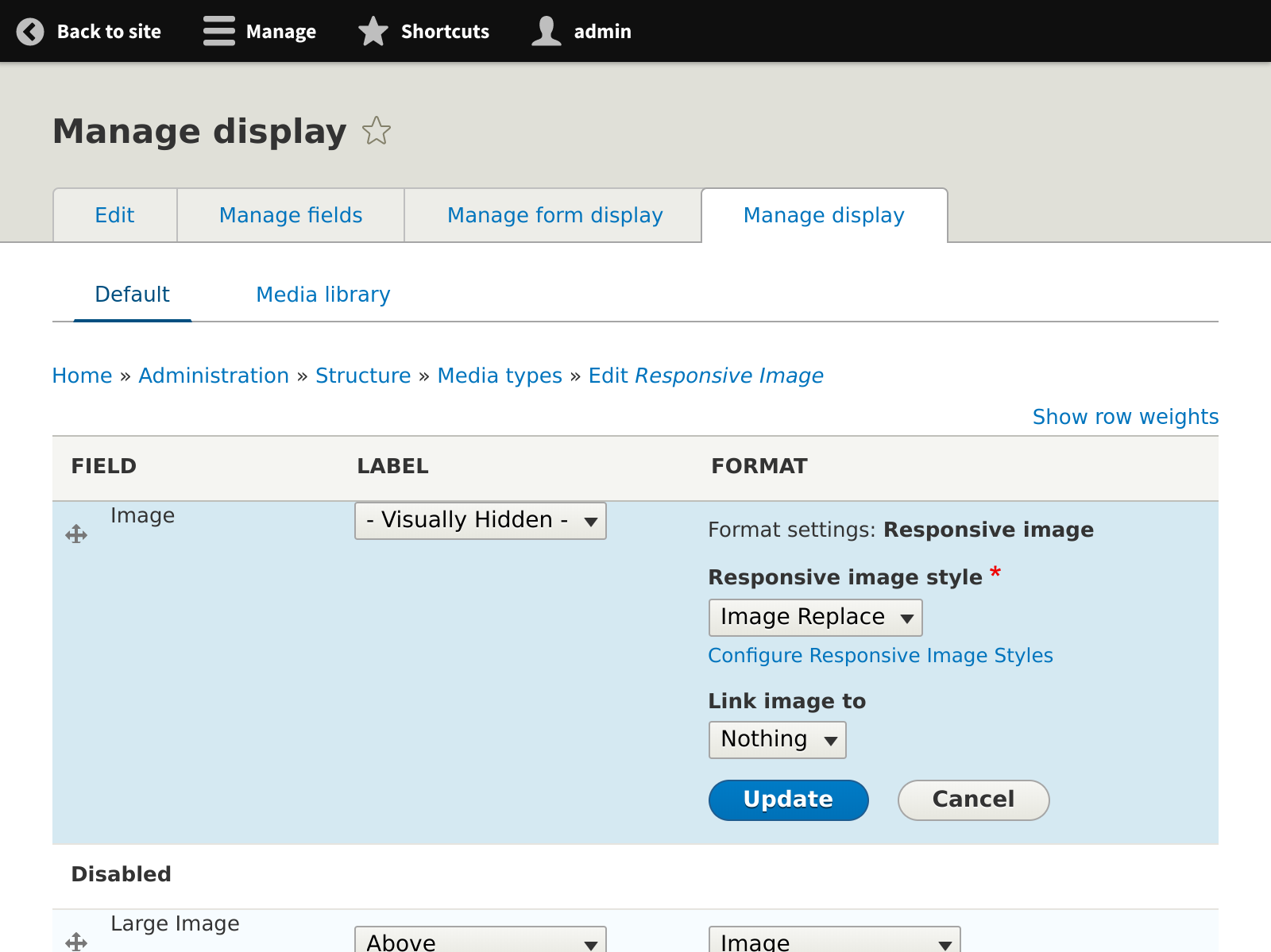
Navigate to Manage display on the created media type and choose the Responsive image formatter for the original Image field. Choose the newly created picture mapping in the formatter settings.
Also make sure that the additional image fields ore excluded from display.
Create content
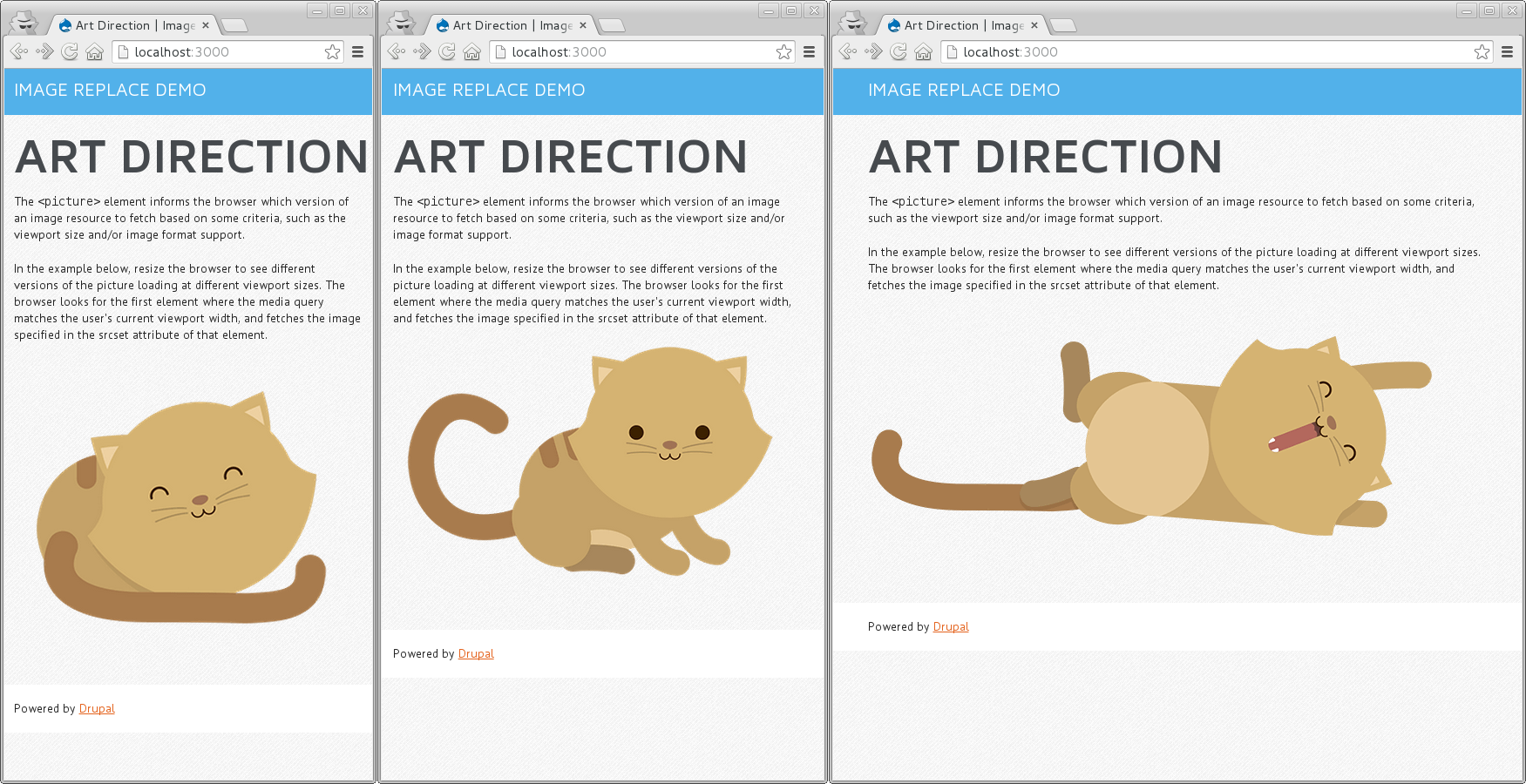
The new media field type can now be added to any fieldable entity (e.g., content type) and it will automatically accept and display multiple image variants
After preparing the image fields, it is now possible to specify other images for different screen sizes on newly created content. The demo installation profile uses the images from the Chrome picture element demo page.
Help improve this page
You can:
- Log in, click Edit, and edit this page
- Log in, click Discuss, update the Page status value, and suggest an improvement
- Log in and create a Documentation issue with your suggestion

