
 The 2026 Drupal Business Survey is open. Your response will help shape the future of the Drupal business ecosystem.
Configuring Entity Reference View Widget
You are browsing documentation for an older version of Drupal, which is not supported any longer, and the information may not be correct. See current documentation for Contributed modules
The process below documents how to set up and configure the Entity Reference View Widget.
1) Create a new view
Create a new view with no display:
Go to Administration >> Structure >> Views >> Add new view (path: admin/structure/views/add)

Give the view an unique name and select which "Entity/content" / "Type" you want to display.
Unselect "Create a page" and "Create a block"
Press "Continue & Edit"
Note: There is no need for a page or a block, but if you happen to be displaying the same entity type as one of these then you can of course have all displays in the same view.
2) Add "Entity Reference View Widget" as a Display type

The next steps can vary depending on your personal needs.
I wanted to show a simple list and not the "Rendered Entity"

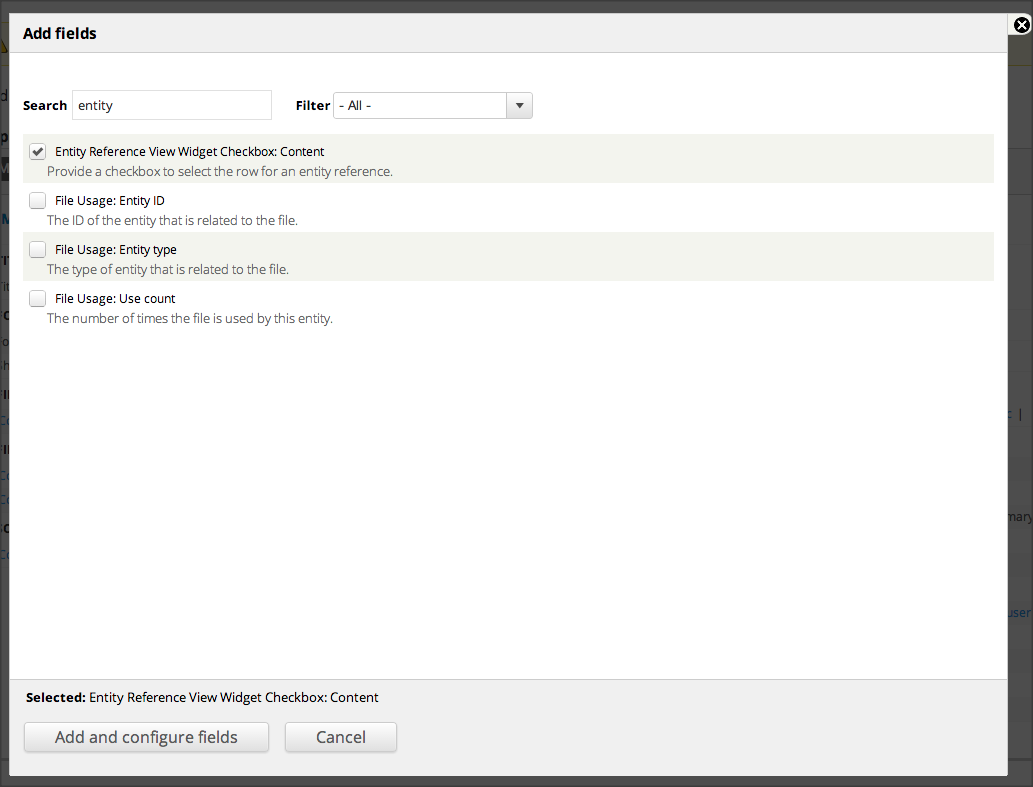
View "Format" >> select "Table"
View "Fields" >> I added the following
- Entity Reference View Widget Checkbox: Content (Important since, this will add the checkboxes of the items you want to select as references)
- Title
Check that "Use Ajax" is set to "Yes", otherwise your view will behave strangly when trying to page, filter, ...
Next press "Save" to save the changes for the view
3) Edit your Content Type or Entity
Add or Edit the field with "Entity Reference"
Next make sure your "field" - "widget type" is set to "View"
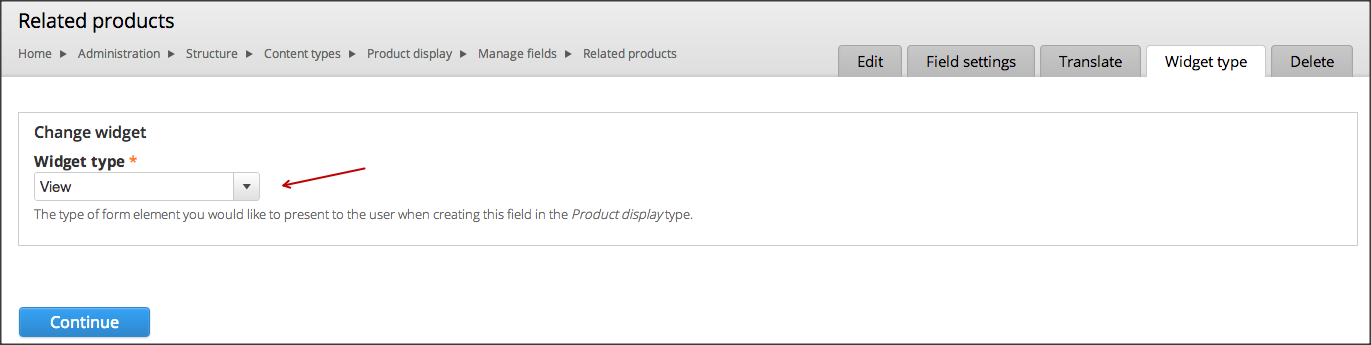
Administration >> Structure >> Content types >> Product display >> Manage fields (in my example)

Check for the following "field" settings in your content type field:
- "View": make sure you select your "Entity Reference View Widget"
- Pass selected entity ids to view


Press "Save settings"
And now you are done.
-----------
Go to existing Node / Entity to "add items" (References) to it.

Add items triggers the Overlay with the view in it

After selection

EXTRA
-----------
Add filter options (which is like adding a filter to any view)
1) Edit your view and "Entity Reference View Widget" as a Display type
2) Add a "FILTER CRITERIA" to the view
Select the desired field you want to filter on, next press "Apply"

Select the desired operator
Make sure you expose your field to the visitors, next press "Apply"

Let assume we want to add our "Title" field as a filter
And use the operator "Contains"
Next press "Save" to save the changes for the view
And now you are done.
-----------
Go to existing Node / Entity to "add items" (References) to it.
On top of the overlay, you now the filter options.

Help improve this page
You can:
- Log in, click Edit, and edit this page
- Log in, click Discuss, update the Page status value, and suggest an improvement
- Log in and create a Documentation issue with your suggestion
