
How to remove or change the default OA branding
Last updated on
30 April 2025
Out of the box Open Atrium is shipped with default branding;
- The logo next to the main menu
- a Powered by Open Atrium image in the footer
- An image (2 images actually) at the login screen.
- A default home page
Of course, it's also easy to override all of this in your site-specific theme, so if you create a subtheme of oa_radix you can add/remove whatever you want.
Adding your custom header and footer minipanels
Create your own Mini panel from scratch and then go into the Space -> Config -> Variables and in the Layout area you can specify the machine-name of the header and footer mini panels you want to use. These will inherit to subspaces, so if you do this for your top-level space it will use your mini panels instead of the defaults.
All links below are in the admin menu
- The Logo next to the main menu can be changed in the
Open Atrium -> Config -> Bannersarea - The footer is using a Mini Panel. Go to
Structure -> Mini Panels. Edit the Footer, choose the Content option and click on the gear wheel hide/change/remove the "Powered by Open Atrium" widget. If you remove it, you can replace it with a custom block containing your transparent image.
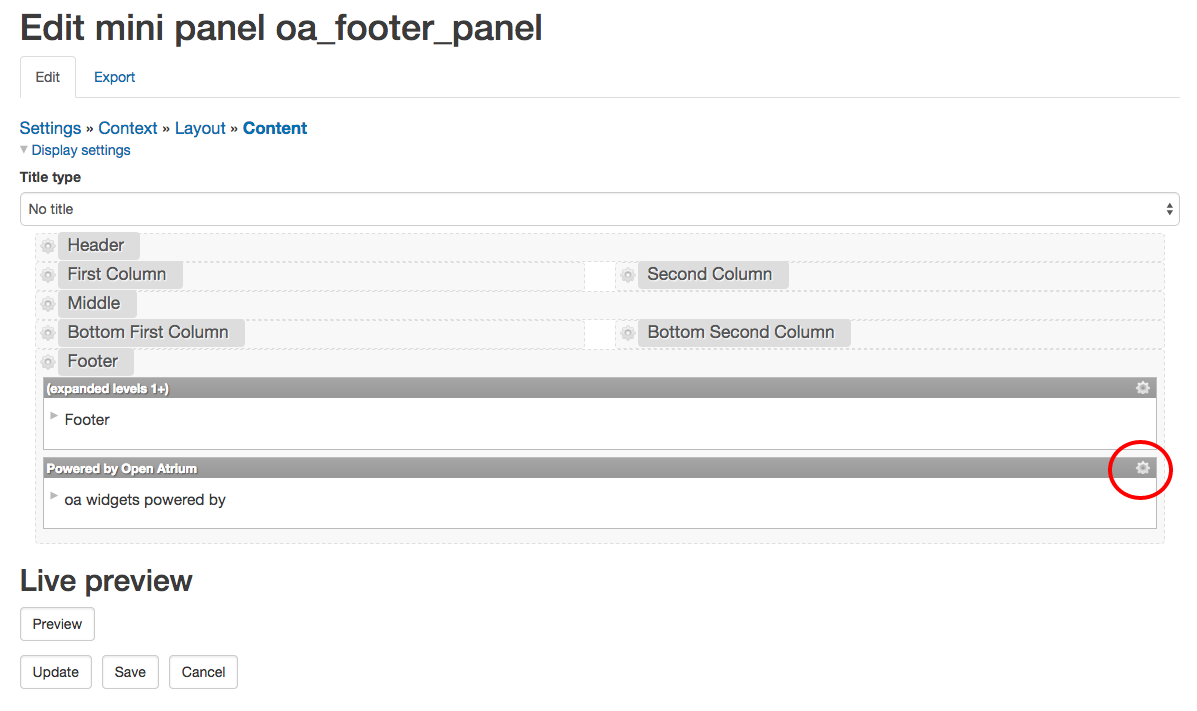
- The login page is a Panels page. Panels Pages are in
Structure/Pages. Go to the General tab onadmin/structure/pages/edit/pm_existing_pages-user_login. In the general settings for the panel there is a CSS class of "oa-login". Edit the panel and remove that css class and that will remove the background image. - To change the default Open Atrium home page, copy the template file from profiles/openatrium/modules/apps/oa_home/oa-home-default.tpl.php to your sub-theme. Clear all caches (Admin->Configuration->Development) so that the template override takes effect. To add more content, an easy way is go to /structure/pages/edit/page-oa_homepage. In Anonymous Home section click content and add content (similar to a normal Panopoly page).
To do:
- Add more: How to change the default home page
Help improve this page
Page status: Not set
You can:
You can:
- Log in, click Edit, and edit this page
- Log in, click Discuss, update the Page status value, and suggest an improvement
- Log in and create a Documentation issue with your suggestion
