
Adding more Mapbox tilesets Tutorial
You are browsing documentation for an older version of Drupal, which is not supported any longer, and the information may not be correct. See current documentation for Contributed modules
MapBox layer provides some baselayers, but you can add additional Mapbox layers (or Tilesets) into Openlayers yourself.
Thanks to DjebbZ for the original tutorial for D6.
Required modules
Instructions
Choose a Tile Set
- First, head to http://tiles.mapbox.com/mapbox in the official MapBox website.
- Choose the tileset you want to use. In this example we will assume that you want to use the World Blue tileset, but the following applies for every tileset. Note the layer name: it is the last part of the url. For the World Blue tileset, it is world-blue.
- In the right part of the page, note the information you'll need in OpenLayers : the Zoom info, specified as a range. For the World Blue tileset the zoom levels are 0-8. Some tilesets may hold a file extension but if none is specified, use png).
Create a Layer
Now go back to your Drupal installation.
- Go to
admin/structure/openlayers/layers/addfor Drupal 7 to add a new layer. - In the list select MapBox.
- Then fill the form with the requested information:
- MapBox layer name: use the Layer name you chose in the step above. In this example world-blue.
- Title, Description: enter the information as you would for any layers.
- Baselayer: tick this box because World-blue is a basemap. Some tilesets from MapBox.com such as 'Haiti Earthquake overlays" are not baselayers, in which case you leave the box unticked.
- Zoom-levels: select the 'Zoom-levels' given at MapBox.com. In this case from 0 to 8.
- File extension: select the appropriate file extension. 'png' for world-blue.
- Save.
- Now you can use the layer you just created in any of your OpenLayers map.
In addition to the above, here's how to use customized maps
Took me some time to figure this out...
Head over to https://www.mapbox.com/editor and create your custom maps and save it.
In the "Project" dropdown you can see the properties of your map, note the Map ID:
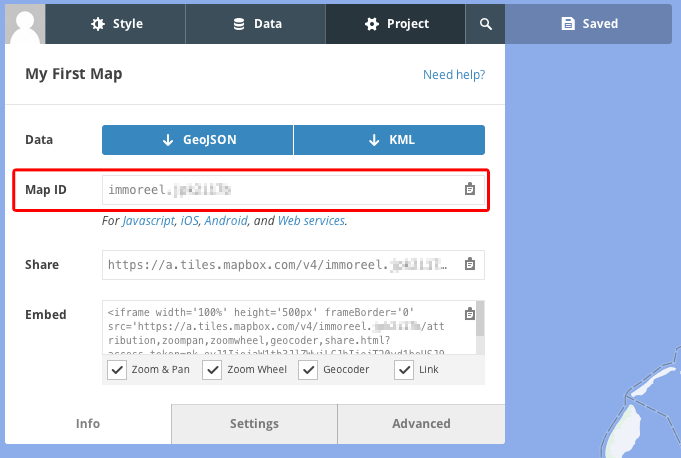
Now create a new layer as explained above. In the "Layer name" field you add the Map ID from above:

You might wanna select all the zoom levels in the zoom level range so you can zoom in deep.
And that's it!
Help improve this page
You can:
- Log in, click Edit, and edit this page
- Log in, click Discuss, update the Page status value, and suggest an improvement
- Log in and create a Documentation issue with your suggestion
