Introduction
In Drupal there is a difference between menu and taxonomy (as of Drupal 6). The menu is a navigation system and taxonomy is a system to order content data: Menus is to arrive at content; Taxonomies to order it.
A menu entry allows you to point directly to a node, like a page or a story, but you can also point to a term in a vocabulary, which would show you a summary list of stories or pages.
Creating a new menu
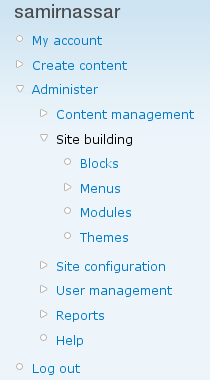
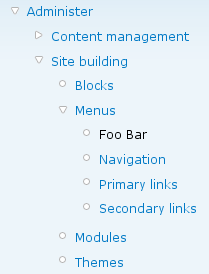
Start by going to the navigation menu and follow the links: Administer > Site building > Menu
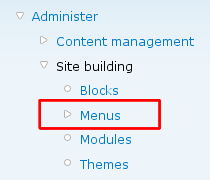
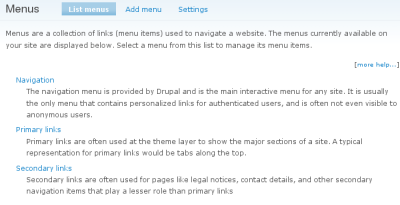
You'll end up at the Menus page
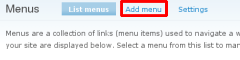
Next you will add a whole new menu
There are three areas to add information to: menu name, title, and description
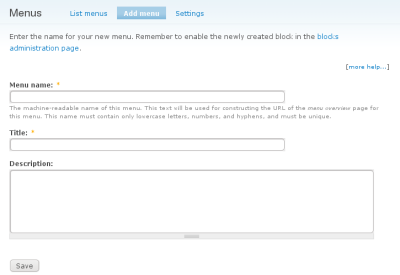
- Menu name
- The menu name has to be machine readable, which means that is can't have spaces, punctuation, and has to be lower case. This exosts so that dupal has an internal reference. As of Drupal 6: This text will be used for constructing the URL of the menu overview page for this menu. This name must contain only lowercase letters, numbers, and hyphens, and must be unique.
- Title
- The title is what you and other site users see and it can be anything you want
- Description
- Writing a description for your menu entry can be very useful to retain information about why the menu entry was created.
Once you have entered your information save your information.
Adding a menu entry to your newly created menu
The navigation menu will now show a new menu entry and the Foo Bar menu is created so that menu entried can be added.
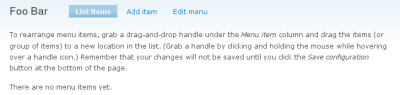
After clicking the Add entry link we get an Add entry edit form
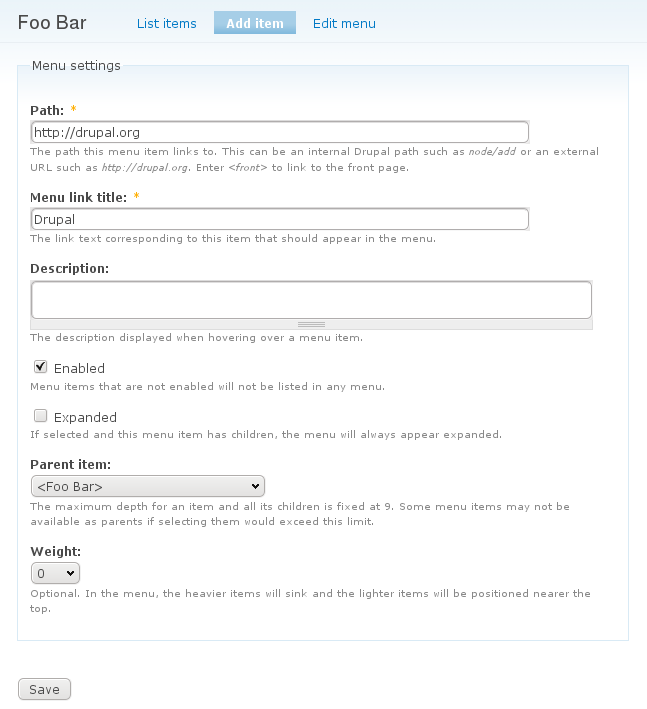
- Path
- The path is where the menu entry will point to. This can be external, as it is in this case http://drupal.org, or internal such as node/1 or admin/reports.
- Menu link title
- Give your menu entry a title. In this example, Drupal
- Description
- A description can be useful to tell yourself and others what the menu entry is for
- Enabled
- This checkbox allows you to make the menu entry active or inactive without having to delete it.
- Expanded
- If this menu entry has sub-entries, known as children, this allow the menu entry to stay expanded so that the children are shown by default.
- Parent item
- Parent item selection allows you to choose where in the menu hierarchy your menu entry belongs.
- Weight
- Weight defines the reative rank of your menu entry. A smaller number means it is higher up.
Now save your menu entry.
Display your new menu
To display your new menu you will add a display to your Drupal installation called a Block. You can learn how to add blocks by reading Blocks - Adding extra information.
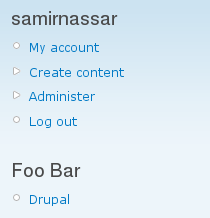
Activate the Foo Bar block in the left sidebar. When you are done, you should see:
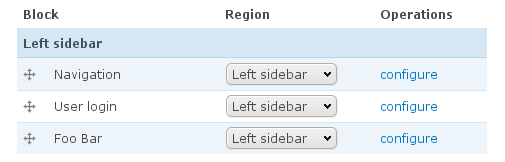
You left sidebar should now display Foo Bar followed by the link you specified
You should now be able to create and edit menus.